Family HUB

QR code of this page
by the littleWEBZ team

What Is a Family Hub: A Private Family Hub With No Subscription


A family hub is one shared place for your family's messages, calendar, lists and fun. littleWEBZ is a family hub on a small stick: $69.99 once, with no monthly fee, no cloud and no internet.

What is a family hub?

Every family needs a place to share news. For years, that place was the fridge door. A paper calendar hung next to it. Notes for "buy milk" and "soccer at 5" were stuck on with magnets. Everyone walked past it, so everyone saw it.

Today most of that has moved to phones. But it is spread over many apps: a group chat for messages, one app for the calendar, another for the shopping list, and photos everywhere. A family hub pulls it back into one place that the whole family shares. It is the fridge door, made digital.

What a good family hub does

  • A message board. Anyone can post a note or a photo for the whole family. Others can add a heart.
  • A shared calendar. Practice, appointments, trips and birthdays, all in one place.
  • A shopping list. Whoever is at the store sees what to buy. Whoever runs out adds it.
  • Family recipes. Grandma's soup should not live on a stained card in one kitchen drawer.
  • Room for each person. Kids want a place for their drawings and their own diary.
  • Something to do together. The best hubs are not only for chores. They bring people to the same table.
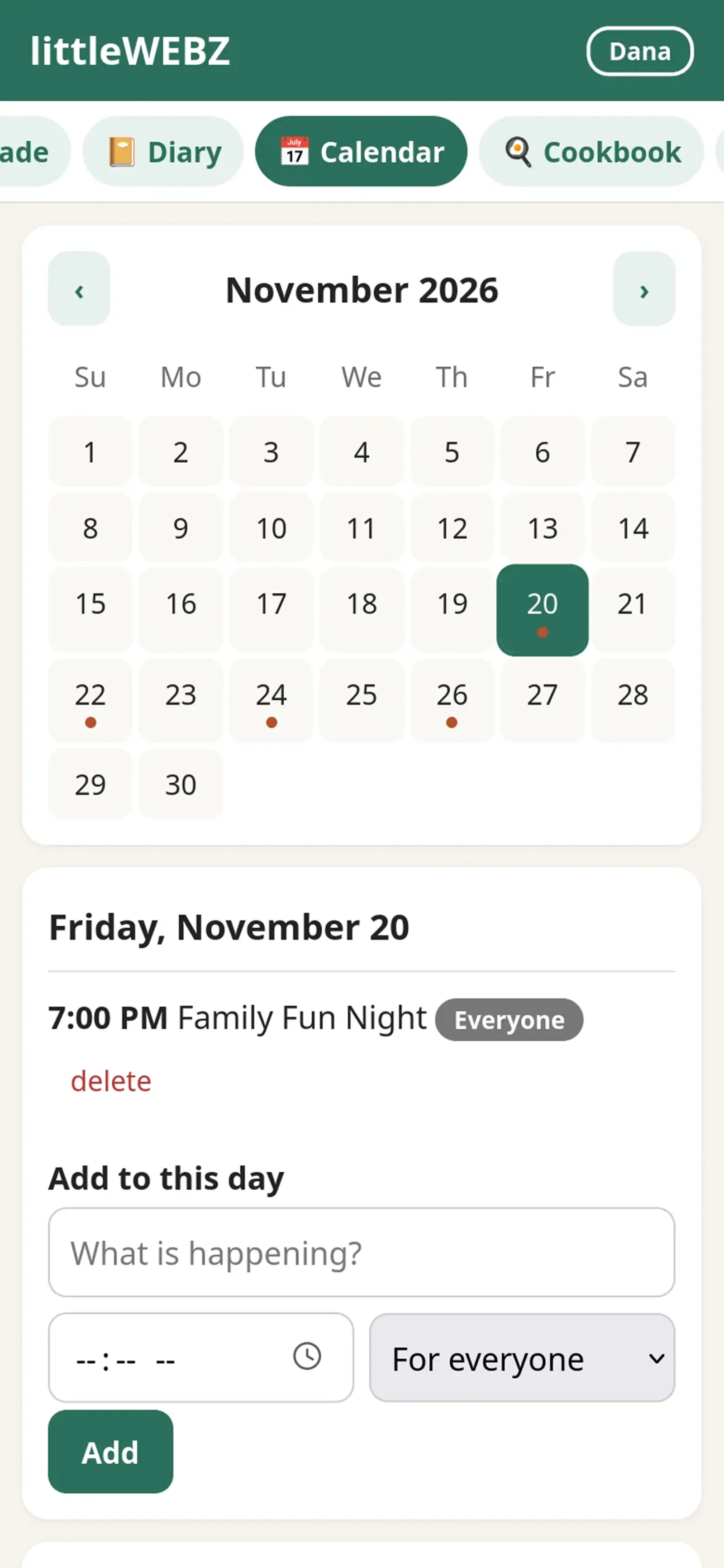
The littleWEBZ family calendar on a phone

Four ways to have a family hub

KindHow it worksWhat to watch for
Wall screens and smart calendarsA big touch screen on the wall or the counter, linked to an online accountMany charge a yearly plan for the best features. For example, Skylight's help pages list Skylight Plus at $79 a year (checked November 2026).
Smart fridges and smart speakersA screen on the fridge, or a speaker with a screenNeed the internet and an account. Samsung uses "Family Hub" as the name of its smart fridges.
Family appsAn app on each phone that shares lists and a calendar through the internetEvery person needs the app and an account. Your family's data is stored on the company's computers.
littleWEBZA small stick that makes its own Wi-Fi; your phones are the screensNo big wall screen, and it does not sync with online calendars. But no fee, no cloud and no internet, ever.

The hidden costs of a family hub

The price on the box is not always the whole price. Before you choose, look for these:

  • A monthly or yearly fee. A $79 yearly plan adds up to $395 over five years, on top of the screen.
  • The internet. If the hub lives in the cloud, it stops when the internet stops. That includes storms, power cuts, cabins and long drives.
  • Accounts. Each account is one more password, one more e-mail list and one more company that holds your family's words and photos.
  • One spot on the wall. A wall screen only helps the person standing in front of it. Phones go everywhere the family goes.
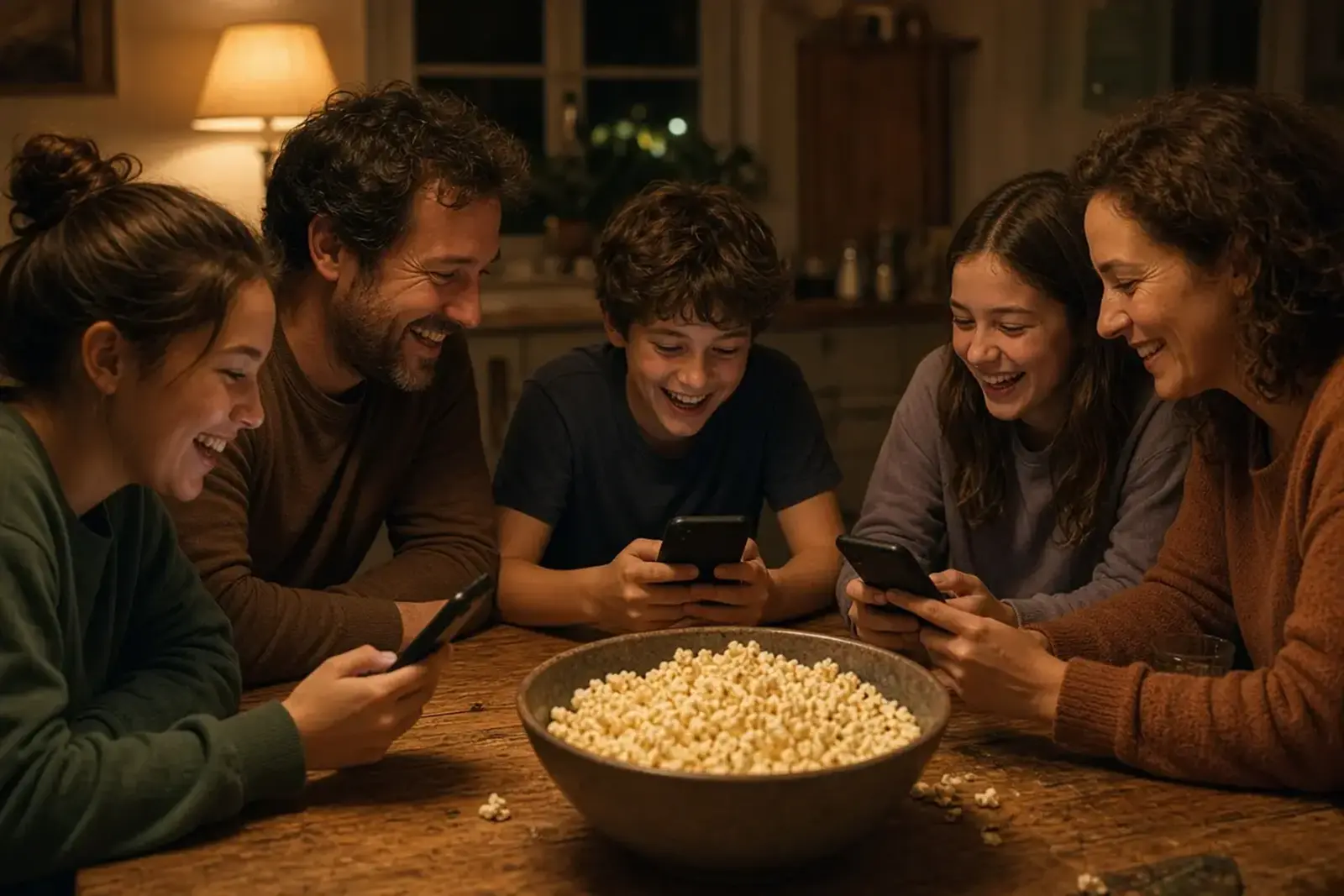
A family around a kitchen table at night playing a trivia game on their phones

How littleWEBZ works

  1. Plug it in. Any USB-A port works: a phone charger, a computer, a car or a power bank. The screen shows two square codes.
  2. Scan the first code. Your phone joins the littleWEBZ Wi-Fi. Each stick has its own password.
  3. Scan the second code. The family site opens in your web browser. There is no app to install.
  4. A parent sets the Parent PIN. Six numbers that only the parents know.
  5. Everyone adds a name and a color. Up to 10 phones can be on at the same time.

That is it. Nothing is sent to the internet, because littleWEBZ never connects to it. Everything is saved on the memory card inside the stick.

What your family gets

  • Message board with photos and hearts.
  • Calendar that shows birthdays by itself.
  • Shopping list that everyone can change.
  • Family cookbook. Change the servings and the amounts change for you. Cook mode shows one step at a time in big letters. Tap a button to add what you are missing to the shopping list. About 5,000 cookbook pages from Wikibooks come with it.
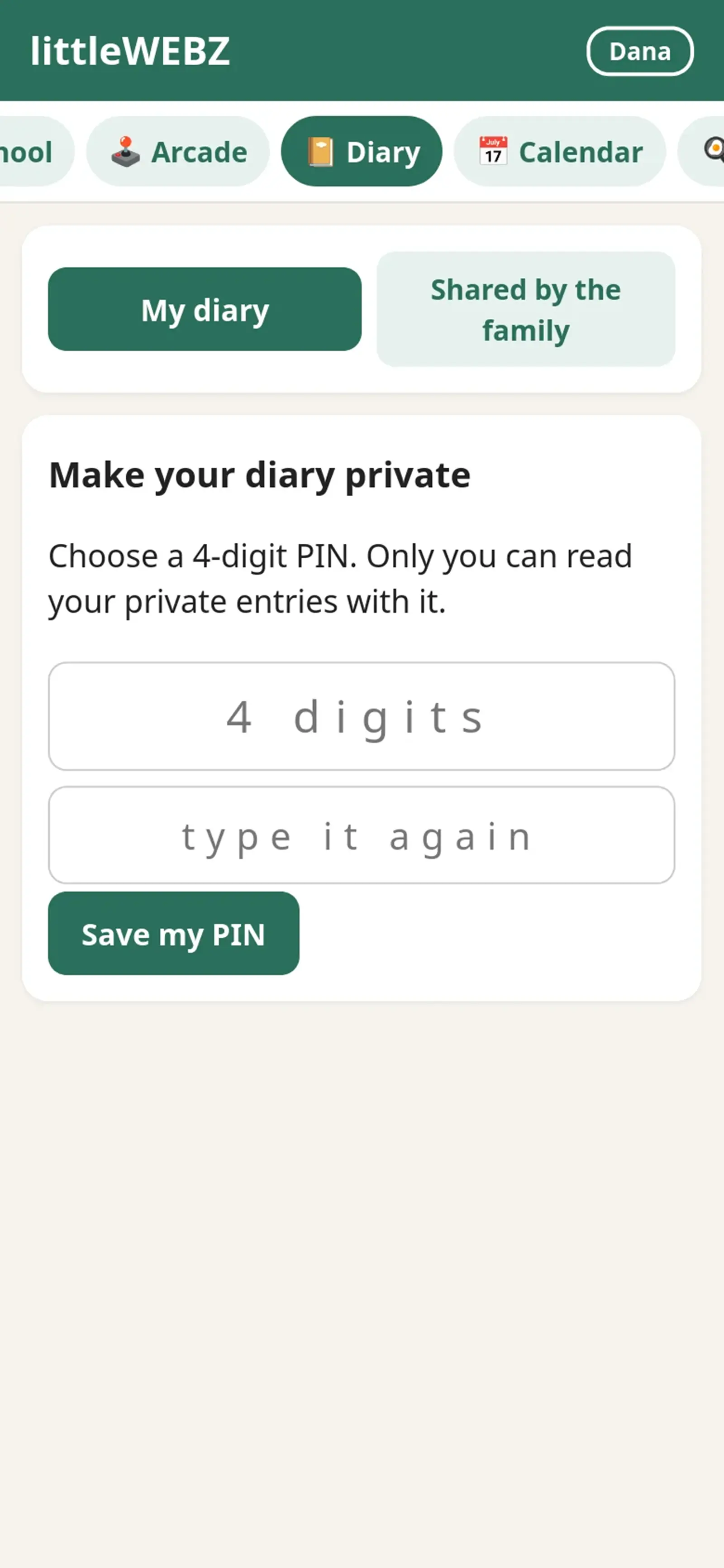
  • Private diaries, each with its own 4-number PIN.
  • A drawing wall for the kids' finger paintings.
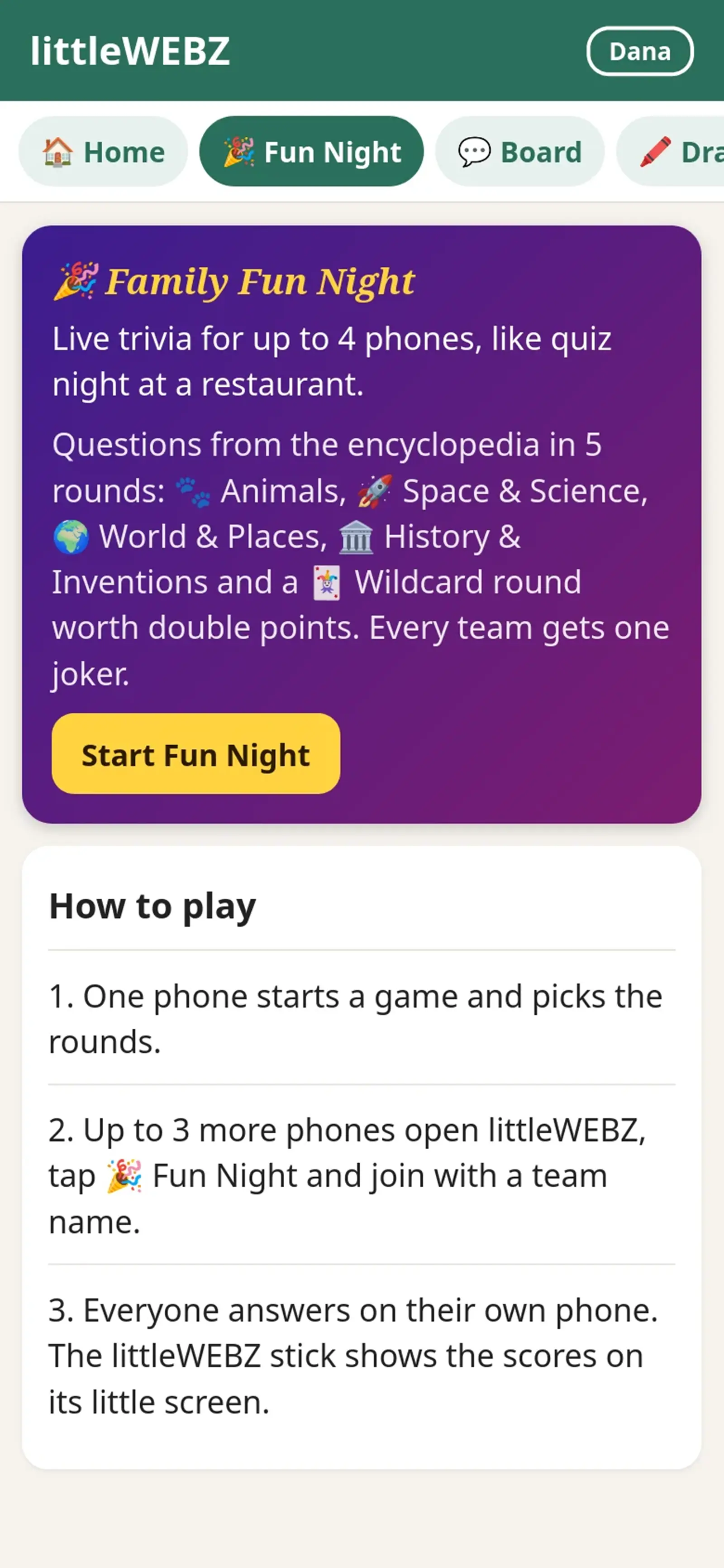
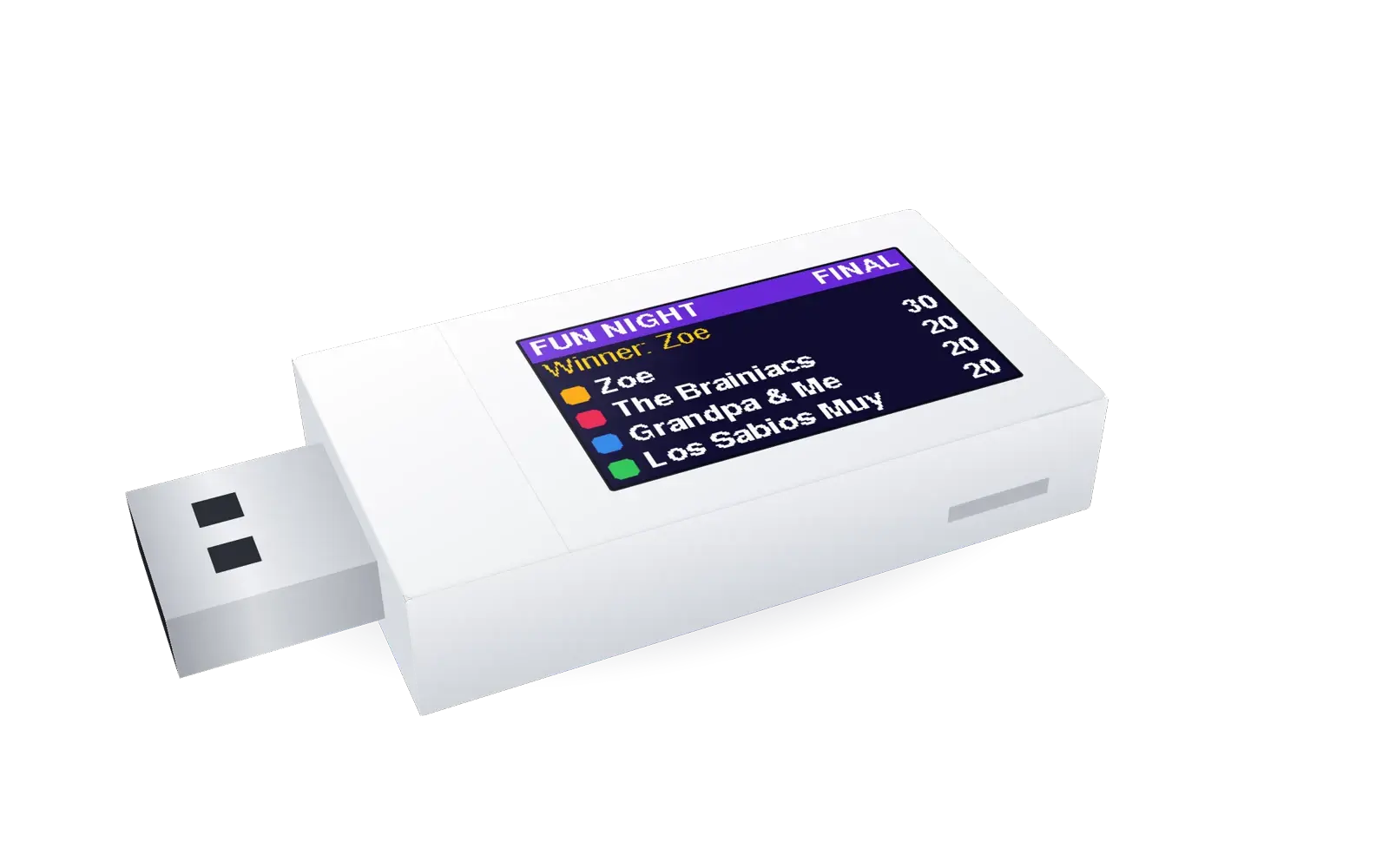
  • Family Fun Night: live trivia for up to 4 phones, with live scores on the stick's own screen.
  • Six games: three learning games and three arcade games.
  • A library: about 290,000 Simple English Wikipedia articles and more than 4,000 free books.

A father cooks with a recipe on his phone while two kids help

Parents stay in charge

A shared family hub needs one grown-up in charge. On littleWEBZ, the first person to set it up chooses the Parent PIN. Only that PIN can change the Wi-Fi, reset a diary PIN, remove a family member or change someone else's name. For the Wi-Fi and a diary reset, someone must also press the button on the stick. So a kid cannot do them, and nobody can do them from far away.

If you forget the Parent PIN, the card in the box has a recovery code for your stick. Keep that card away from the kids.

The honest limits

  • There is no big wall screen. Your phones and tablets are the screens.
  • It does not sync with Google, Apple or other online calendars.
  • The backup holds text only, not photos.
  • The PINs work inside the website. Anyone who holds the stick can read its card with a computer. Keep the stick somewhere your family trusts.
  • It has no battery. It needs USB power to run.

A family hub you can take with you

A wall screen stays on the wall. littleWEBZ is about the size of a thumb drive, so the family hub goes where the family goes. Plug it into the car on a road trip and the kids can play trivia in the back seat. Take it to grandma's house and she can see the drawings and the message board. At a cabin with no internet, the calendar, the cookbook and the library still work.

Your family's posts, photos and diaries travel with it, because they are saved on the card inside the stick. When you get home, plug it back in and everything is right where you left it.

How to choose a family hub: five questions

  1. What will it cost in five years? Add the price and every fee.
  2. Does it work without the internet? Think about storms, trips and cabins.
  3. Where is our data kept? On a company's computers, or at home?
  4. Can everyone use it? Grandparents, small kids and teens, on the phones they already have.
  5. Will the kids want to use it? Games, trivia and drawings bring them back.

Who littleWEBZ is for

Families who want one shared place without ads or monthly fees. Families who travel, camp or spend time at a cabin. Homeschoolers who want a safe library. Families who prepare for storms and power cuts. And anyone who wants their family's photos and words to stay at home. It also has a second tool for trips: the Signal Finder.

Questions and answers

What is a family hub?

One shared place for a family's messages, calendar, shopping list, recipes and fun.

Does littleWEBZ have a monthly fee?

No. It costs $69.99 once. There is no subscription.

Does littleWEBZ need the internet?

No. It makes its own Wi-Fi and never connects to the internet.

How many phones can use littleWEBZ?

Up to 10 phones, tablets or computers at the same time.

Is littleWEBZ the Samsung Family Hub?

No. Samsung Family Hub is a smart fridge. littleWEBZ is a small stick that makes a private family website, and it is not made by Samsung.

littleWEBZ is $69.99. No monthly fee, no accounts and no internet needed.

Get littleWEBZ See every feature

littleWEBZ Help guide · Glossary · More from the Family HUB

by the littleWEBZ team

A Private Family Website That Never Touches the Internet


littleWEBZ is a private family website that lives on a small stick, not on the internet. Your messages, photos, diaries and lists stay on the memory card inside it, and only phones that know its Wi-Fi password can reach them.

A mother in a sunny kitchen smiles at a message on her phone

Why private matters

Most family apps store your photos and messages on a company's computers, in the cloud. They often need accounts, show ads, or charge a monthly fee. littleWEBZ does none of that. It does not use the internet at all.

How littleWEBZ keeps things private

  • It makes its own Wi-Fi with its own password. Each stick has a different password.
  • Nothing goes on the internet. Everything is on the memory card.
  • Each person can keep a diary with a PIN.
  • A Parent PIN protects the big changes: the Wi-Fi, diary resets and removing someone. The Wi-Fi change and a diary reset also need a press of the button on the stick, so nobody can do them from far away.
  • A diary reset erases that person's private entries, so a reset can never be used to read a diary.
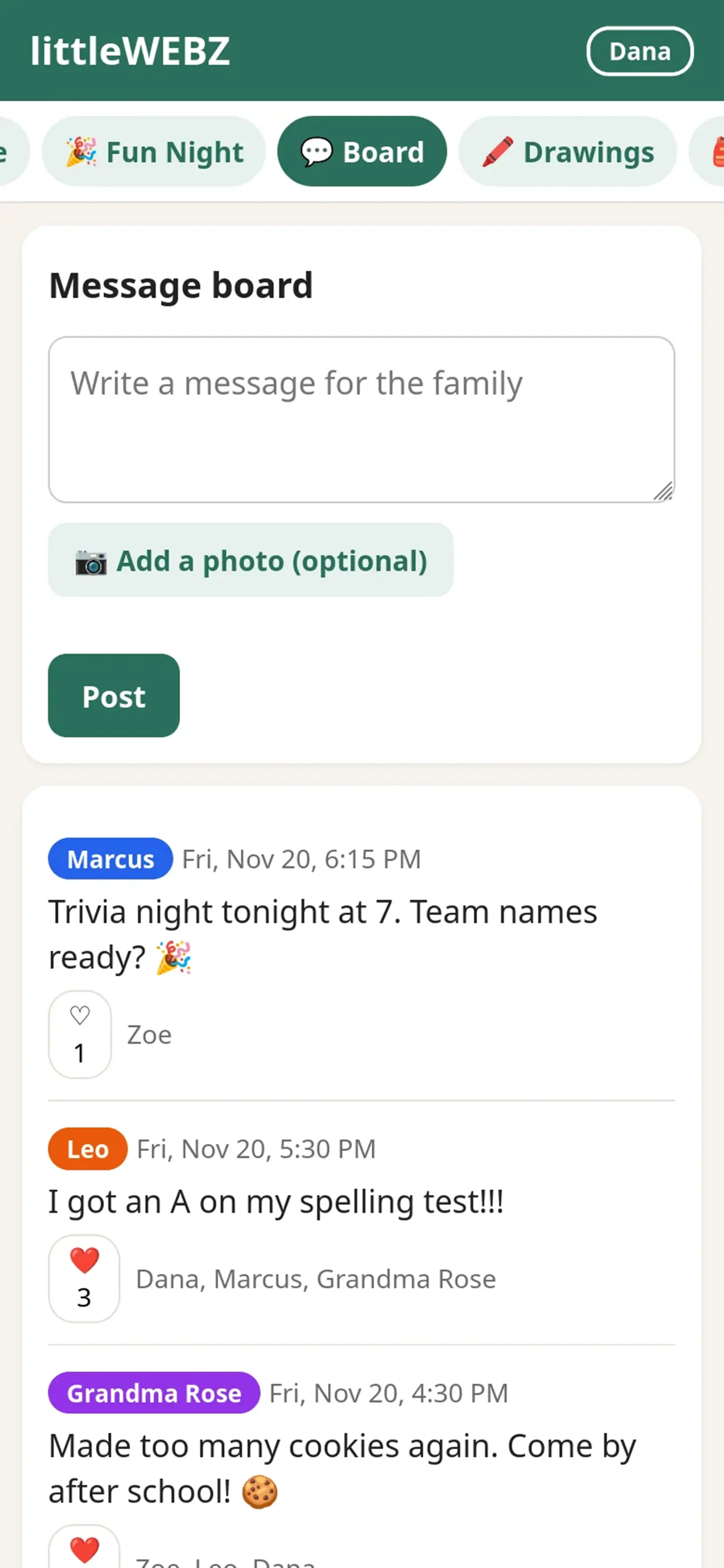
The littleWEBZ family message board on a phone

The honest part

The PINs work inside the website. They do not lock the card. Anyone who holds the stick can read its card with a computer, private diary entries too. Diaries are not encrypted. So keep the stick in a place your family trusts.

What the family gets

A message board, drawings, diaries, a calendar, a shopping list, a family cookbook, trivia, games and a library. See all features.

Questions and answers

Does littleWEBZ use the cloud?

No. Everything stays on the memory card inside the stick.

Are the diaries encrypted?

No. The diary PIN protects entries inside the website, but anyone holding the stick can read the card with a computer.

Who can join the littleWEBZ Wi-Fi?

Only phones that know its password. Each stick makes its own random password.

littleWEBZ is $69.99. No monthly fee, no accounts and no internet needed.
Get littleWEBZ See every feature

littleWEBZ Help guide · Glossary · More from the Family HUB

by the littleWEBZ team

Offline Family Fun: Wikipedia Books Games and Trivia With No Internet


littleWEBZ brings trivia night, games and a whole library to places with no internet: the car, a cabin, a campsite or a camper van. Plug it into USB power and every phone nearby can play.

Family Fun Night

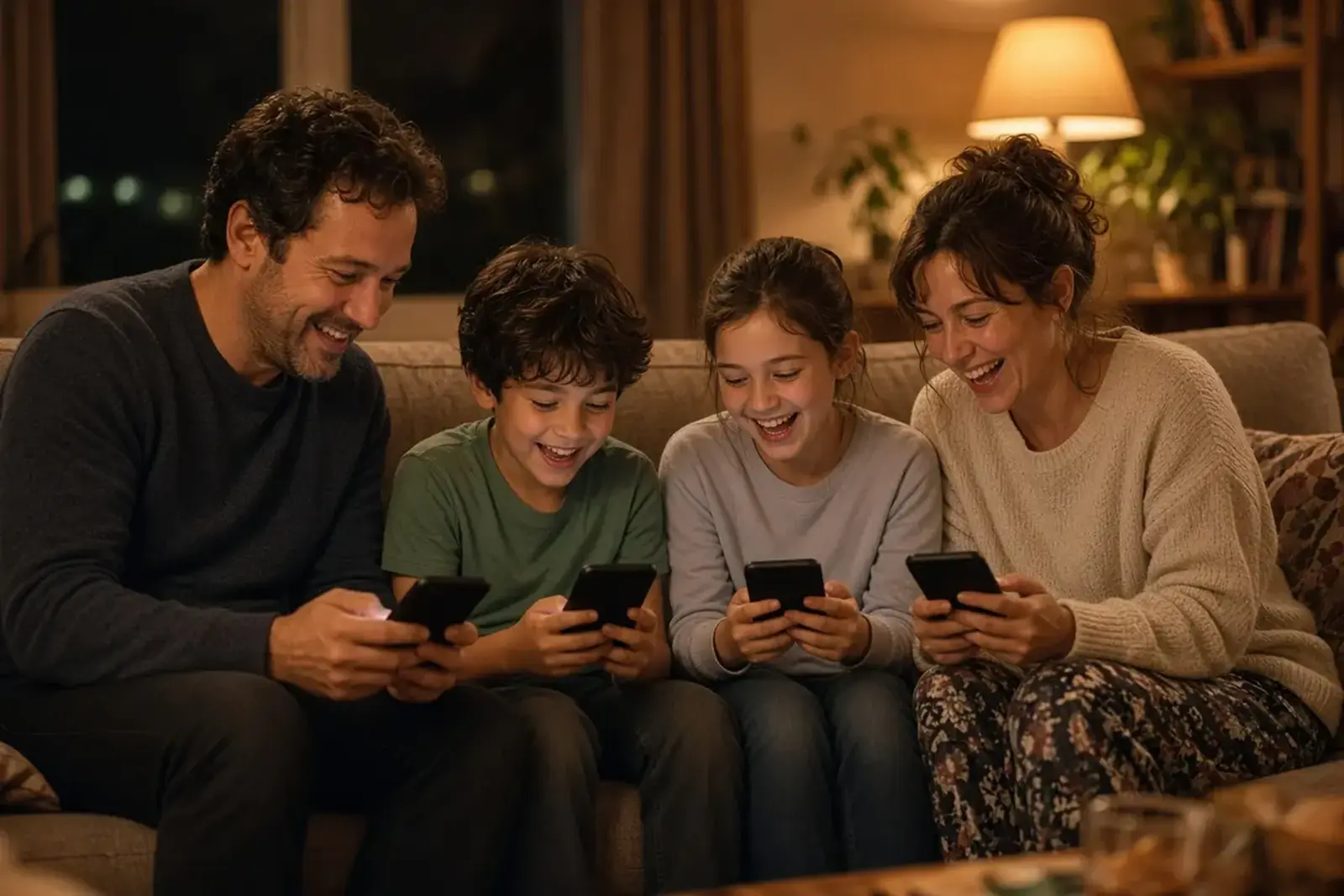
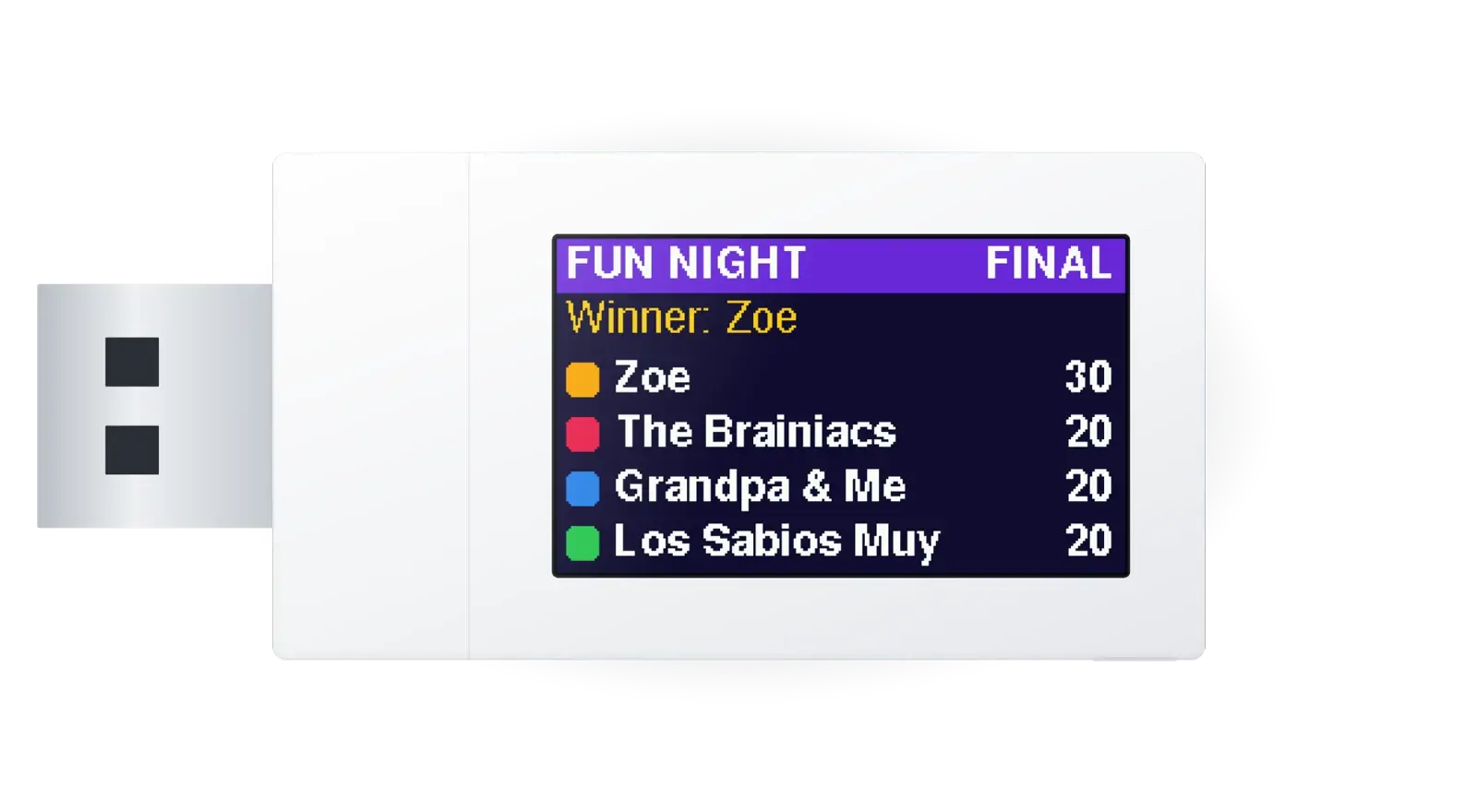
Live trivia for up to 4 phones (4 teams), with 100 questions in 5 rounds: Animals, Space and Science, World and Places, History and Inventions, and the Wildcard, worth double. Each team gets one joker. The stick's own screen shows the live scores. How to play.

A family of four on a sofa at night competing in a phone game

Six games

  • Three learning games: Letter Slash, Number Match and Shape Monster.
  • Three arcade games: Brick Blaster, Star Defenders and Poker Night with pretend chips only.

A library in your pocket

About 290,000 Simple English Wikipedia articles and more than 4,000 Wikibooks, including about 5,000 cookbook pages. Settle a question at the campfire, or find a recipe in the cabin kitchen.

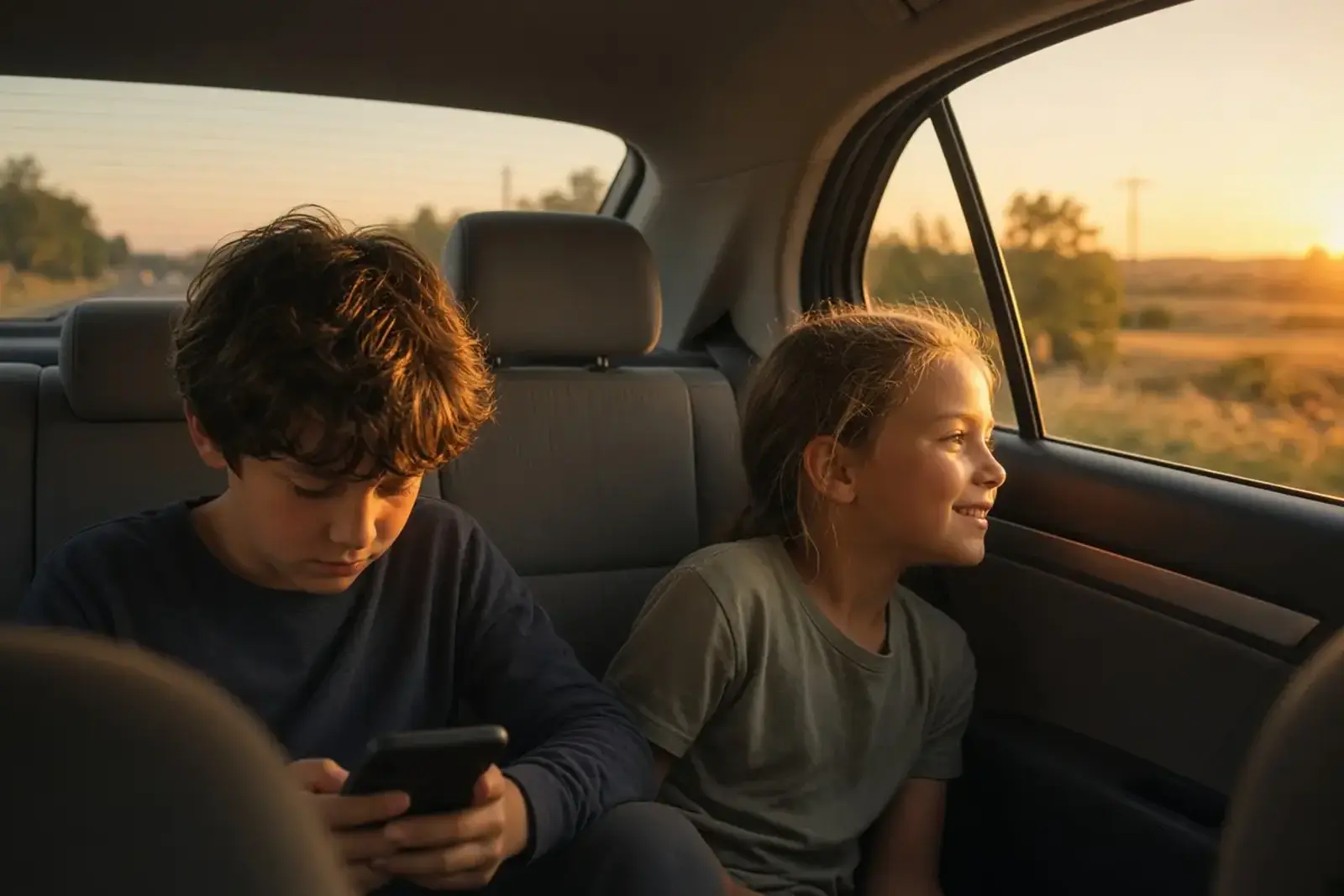
Two kids in the back seat of a car on a road trip, one reading on a phone

Where it works

Anywhere with USB-A power: a car port, a power bank, a laptop or a wall charger. It makes its own Wi-Fi, so you do not need cell signal or a router.

Questions and answers

Do we need cell signal to play?

No. Phones join the stick's own Wi-Fi. No internet or cell signal is needed.

How many phones can play trivia?

Up to 4 phones as teams. Other phones can watch the scores.

Are there in-app purchases?

No. There are no ads, no accounts and nothing to buy inside. Poker uses pretend chips only.

littleWEBZ is $69.99. No monthly fee, no accounts and no internet needed.
Get littleWEBZ See every feature

littleWEBZ Help guide · Glossary · More from the Family HUB

by the littleWEBZ team

littleWEBZ as a Pocket Cyberdeck: A Tiny Server You Can Carry


A cyberdeck is a small, rugged computer you can carry anywhere. littleWEBZ is a pocket server in that spirit: a tiny ESP32-S3 board with its own Wi-Fi, a web server and a 32 GB library, and your phone is its screen.

The littleWEBZ stick seen from the top, with its USB plug and screen

What is inside

PartWhat it is
ChipESP32-S3 dual-core processor, 16 MB flash, 2 MB extra memory
Radio2.4 GHz Wi-Fi (802.11 b/g/n) and Bluetooth Low Energy
Screen1.14-inch color screen, 240 x 135 pixels
Storage32 GB microSD card; the library uses about 5.6 GB
PowerAny USB-A port. No battery.
SizeAbout 2.4 x 1 x 0.35 inches (61 x 24.5 x 9 mm) with the plug

How it works

When you plug it in, the stick starts its own Wi-Fi network with its own password. It is the router and the website at the same time. Up to 10 phones, tablets or computers can join. They open the family site at 192.168.4.1 in the browser they already have. No app, no account, no cloud.

The two cores share the work. The radio runs on one core. The screen, the button and the games run on the other. The web server runs wherever there is room, so the screen keeps moving while phones load pages.

Two tools in one

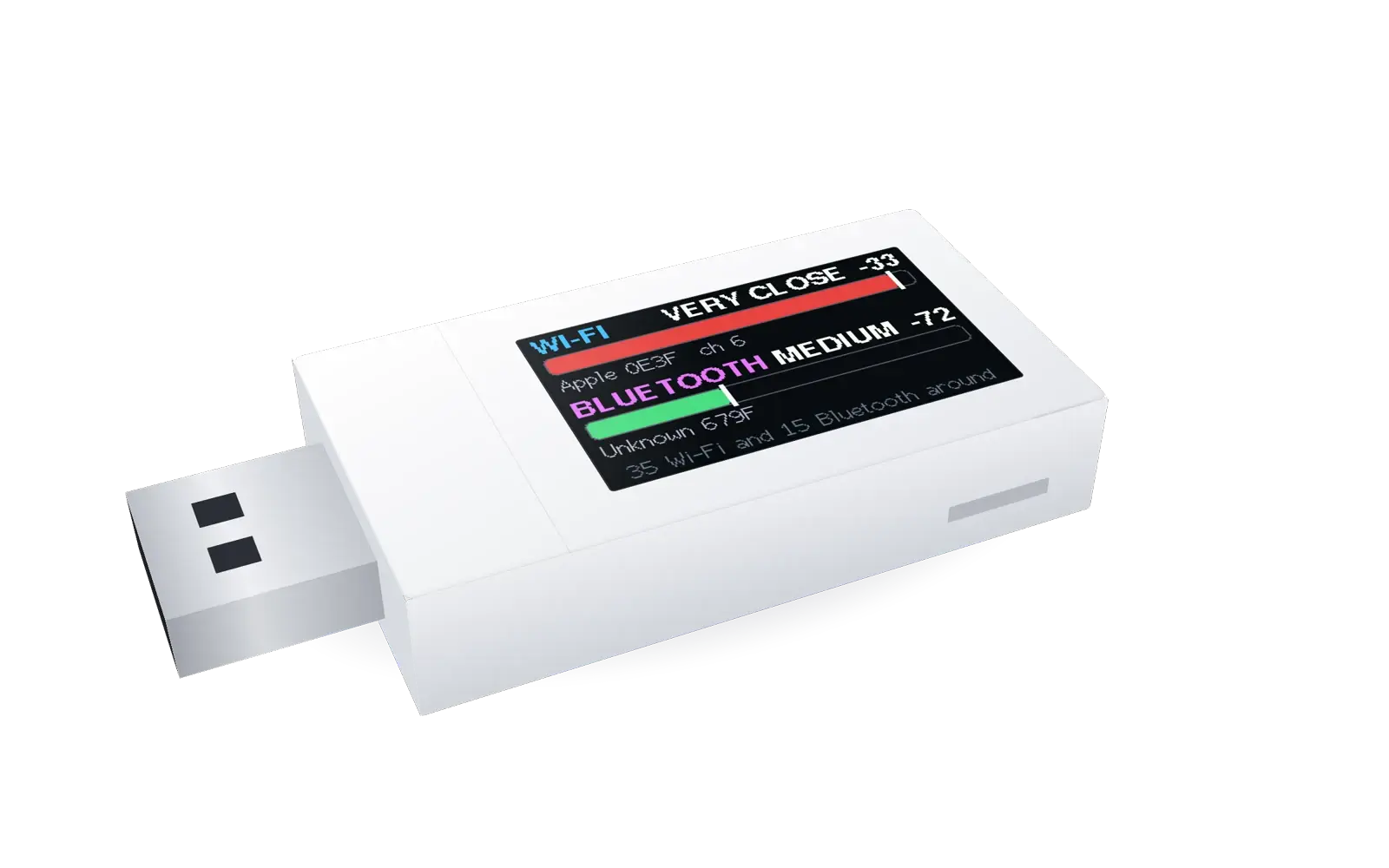
Hold the button 3 seconds and the stick turns into the Signal Finder: a silent Wi-Fi and Bluetooth meter with a radar picture. It only listens. Hold it again and you are back to the family hub. Read about checking a room with it.

The littleWEBZ stick showing Wi-Fi and Bluetooth meters

What it is not

  • It has no keyboard and no big screen. Your phone is the screen.
  • It does not connect to the internet, ever.
  • New software is loaded by the seller, not by the user.

Where it shines

Off-grid trips, road trips, cabins, camper vans, power cuts, and homes that want a private family space with no cloud. See disaster prepping and offline family fun.

Questions and answers

What chip is inside littleWEBZ?

An ESP32-S3 dual-core processor with 16 MB flash and 2 MB extra memory, plus 2.4 GHz Wi-Fi and Bluetooth Low Energy.

How many devices can join littleWEBZ?

Up to 10 phones, tablets or computers at the same time.

Do I need an app?

No. It works in the web browser you already have.

littleWEBZ is $69.99. No monthly fee, no accounts and no internet needed.
Get littleWEBZ See every feature

littleWEBZ Help guide · Glossary · More from the Family HUB

by the littleWEBZ team

Homework and Homeschool Help With No Internet


littleWEBZ puts an encyclopedia, a library of free books and learning games on a small stick. Kids open them in the phone or tablet browser on the littleWEBZ Wi-Fi, with no internet, no ads and no strangers.

A girl doing homework at a desk with a notebook and a phone

An encyclopedia in easy English

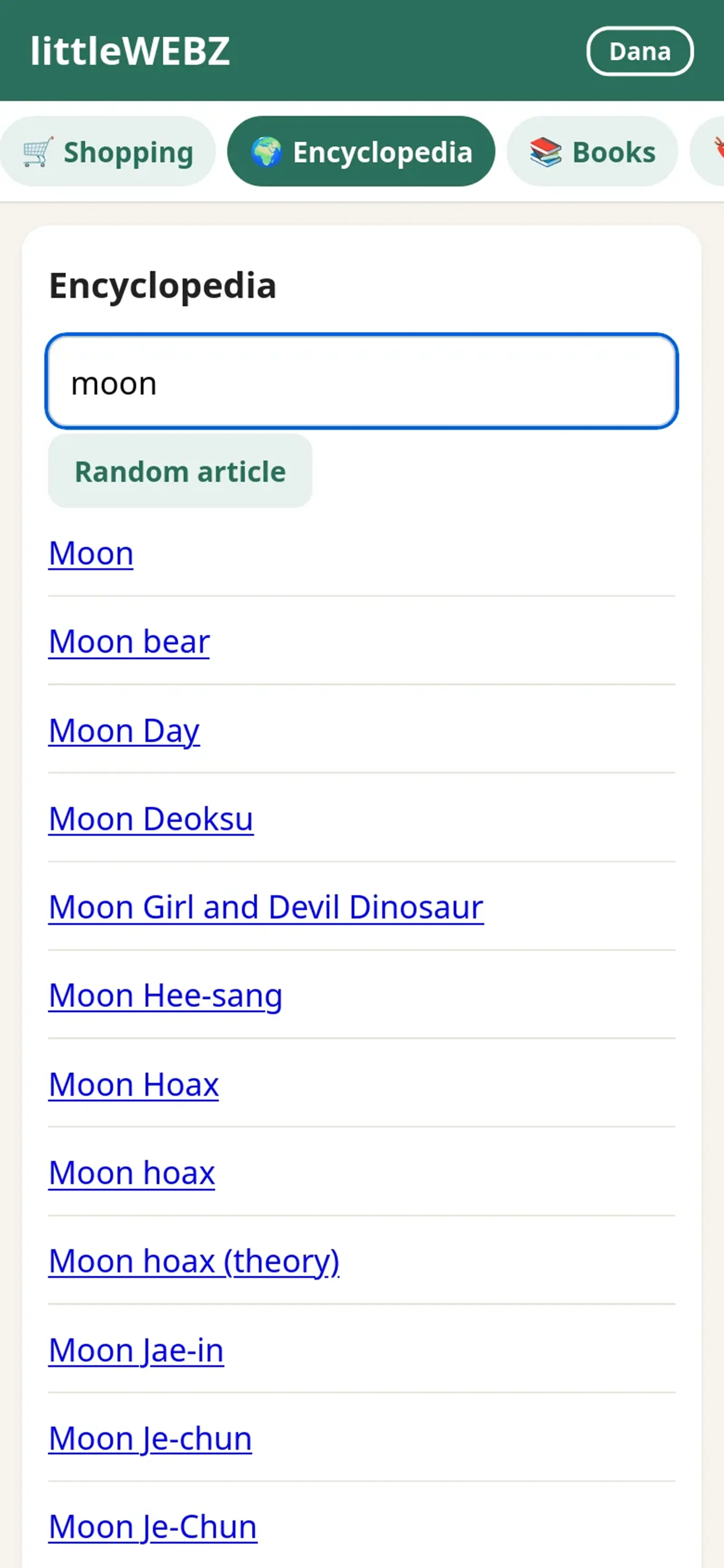
The Simple English Wikipedia is on the stick: about 290,000 articles written in easy English. Type the start of a title, or tap Random article to learn something new. Blue words open other articles. The articles have text only, no pictures.

Searching the encyclopedia in littleWEBZ on a phone

A library of free books

All of English Wikibooks is on the stick: more than 4,000 free books about school subjects, languages, science, computers and hobbies. Wikijunior has books made for kids. Volunteers wrote them, and you may share their text if you name where it came from (CC BY-SA 4.0).

Learning games for young kids

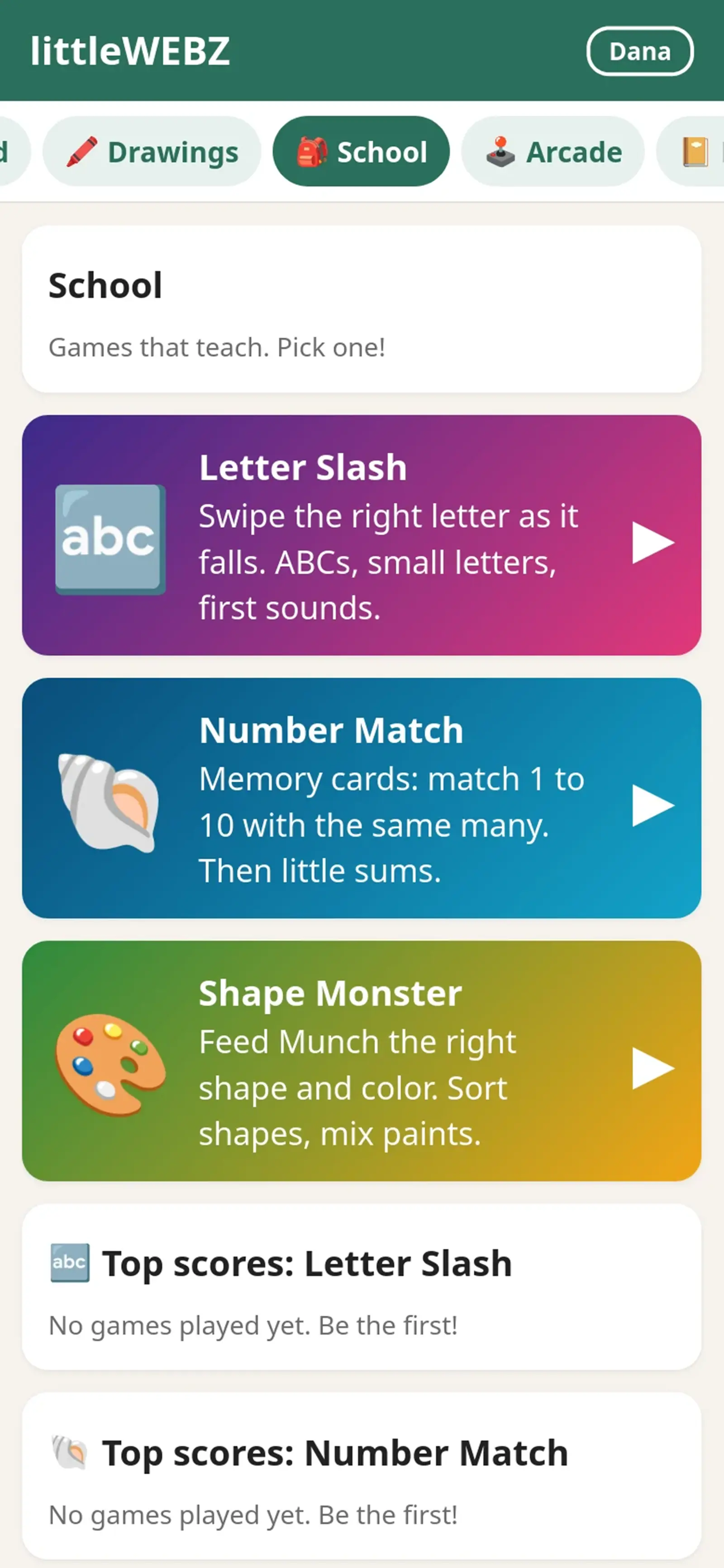
  • Letter Slash: swipe the right falling letter: ABC order, big and small letters, first sounds.
  • Number Match: a memory game with numbers and little sums.
  • Shape Monster: feed the monster the right shape and color.

Each game has levels, stars, and Easy and Hard modes. The phone can say letters and words out loud.

The littleWEBZ School page with learning games

Trivia that teaches

Family Fun Night is live trivia for up to 4 phones. After each question, every phone shows a short fact from the encyclopedia. It is a fun way to learn together. See Fun Night.

Why no internet is good for school time

  • No ads and no pop-ups.
  • No links that lead to the rest of the internet.
  • No accounts to make, and nothing to sign up for.
  • It works the same at home, in the car or at grandma's.
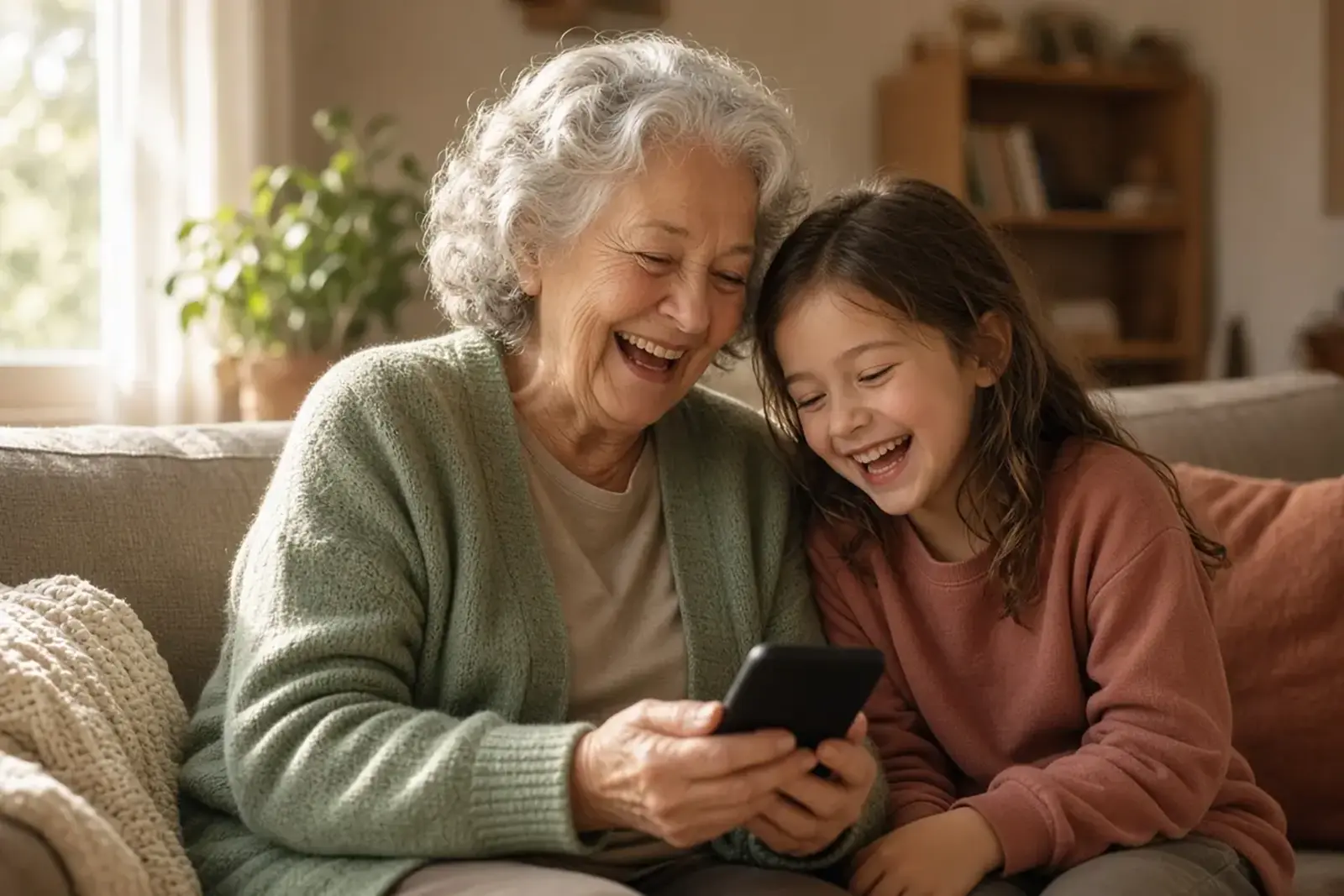
A grandmother and her granddaughter look at a phone together on a sofa

Questions and answers

Is the encyclopedia the full Wikipedia?

It is the Simple English Wikipedia: about 290,000 articles in easy English, text only, with no pictures.

Do kids need an app or an account?

No. They open littleWEBZ in the web browser of a phone or tablet on the littleWEBZ Wi-Fi.

Can kids reach the internet through littleWEBZ?

No. littleWEBZ never connects to the internet.

littleWEBZ is $69.99. No monthly fee, no accounts and no internet needed.
Get littleWEBZ See every feature

littleWEBZ Help guide · Glossary · More from the Family HUB

by the littleWEBZ team

Disaster Prepping for Families: Keep Talking and Learning When the Internet Is Down


When a storm or a power cut takes the internet down, littleWEBZ keeps working. It runs from any USB power, even a power bank, and makes its own Wi-Fi, so the phones near it can still share messages, lists, books and games.

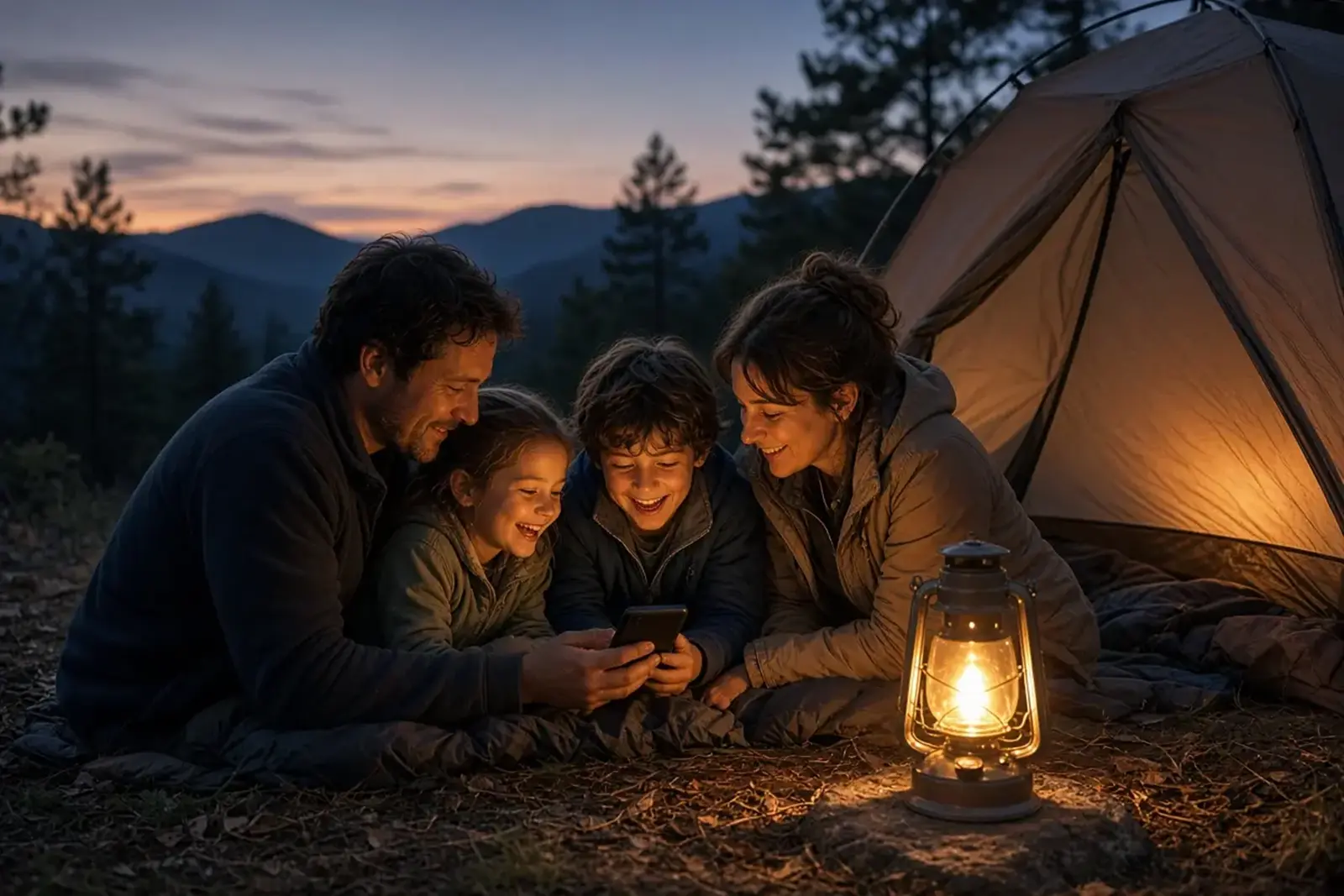
A family at a campsite at dusk next to a tent and a lantern, looking at a phone

Why the internet is the weak link

Most family apps live in the cloud. When the internet stops, they stop too. littleWEBZ does not use the internet at all. Everything is on the memory card inside the stick, so nothing changes when the internet goes down.

What littleWEBZ gives your family in an outage

  • A family message board for notes and photos, shared by every phone on the littleWEBZ Wi-Fi.
  • A shared shopping list and a calendar.
  • A library: about 290,000 Simple English Wikipedia articles and more than 4,000 Wikibooks, including about 5,000 cookbook pages.
  • Games and trivia to keep kids busy and calm.

How to power it

littleWEBZ has no battery. It runs from any USB-A port: a phone charger, a computer, a car, or a power bank. How long it runs depends on your power bank. Keep one charged in your emergency kit, next to the stick.

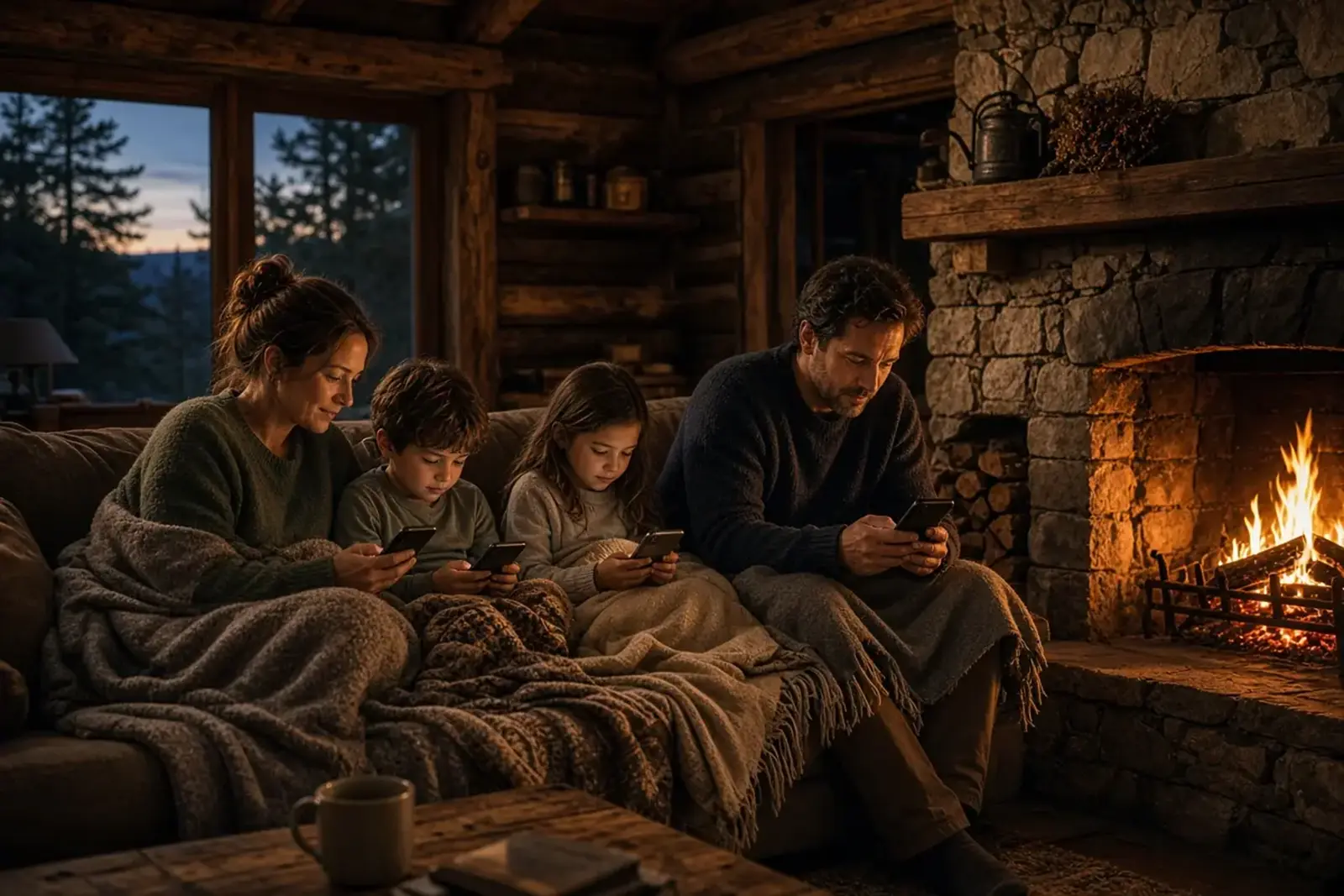
A family inside a mountain cabin in the evening by the fireplace

Add it to your emergency kit

  1. A charged power bank and its cable.
  2. The littleWEBZ stick (with its card inside).
  3. The quick-start card from the box. It has your stick's recovery code.
  4. Phones and their chargers.

Practice once: plug the stick in, join its Wi-Fi with the code on the screen, and open the family site. Then everyone knows how it works.

Be honest about the limits

  • littleWEBZ is not a phone and cannot call or text outside its own Wi-Fi. Phones must be near the stick.
  • It cannot reach emergency services. Always follow your local emergency plan.
  • The encyclopedia is not a replacement for a first-aid course.

Because it needs no internet, littleWEBZ is just as useful at a cabin, on a road trip or at a campsite. See offline family fun.

Questions and answers

Does littleWEBZ work without the internet?

Yes. It never uses the internet. It makes its own Wi-Fi and keeps everything on its memory card.

Does littleWEBZ have a battery?

No. It runs from any USB-A power: a charger, a computer, a car or a power bank.

Can littleWEBZ call for help?

No. It only connects the phones on its own Wi-Fi. Follow your local emergency plan.

littleWEBZ is $69.99. No monthly fee, no accounts and no internet needed.
Get littleWEBZ See every feature

littleWEBZ Help guide · Glossary · More from the Family HUB

by the littleWEBZ team

littleWEBZ Glossary: Family Hub Offline and Signal Words Explained


Words you meet on littleWEBZ and in our articles, explained in plain English.

192.168.4.1
The address you type in your web browser to open littleWEBZ when your phone is on its Wi-Fi.
2.4 GHz
The radio band most home Wi-Fi gadgets use. littleWEBZ makes its Wi-Fi on 2.4 GHz, and the Signal Finder listens on 2.4 GHz. Read more
5 GHz
A faster Wi-Fi band. Some newer gadgets use it. The Signal Finder cannot hear 5 GHz. Read more
AirTag
A small Bluetooth tracking tag made by Apple. The Signal Finder shows TRACKER? for gadgets that look like tags. Read more
Arcade games
The three just-for-fun games on the stick: Brick Blaster, Star Defenders and Poker Night (pretend chips only).
Backup
A file you can download to your phone with the text of your family's lists, posts and diaries. It does not hold photos.
Bluetooth Low Energy (BLE)
A low-power kind of Bluetooth used by tags, watches and many small gadgets. The Signal Finder listens for it. Read more
BUSY
A Signal Finder clue: this Wi-Fi gadget is sending a lot of data. Video cameras send a lot. A clue, not proof. Read more
CAM MAKER
A Signal Finder clue: the gadget's maker also makes security cameras. Read more
CC BY-SA 4.0
The free license of Wikipedia and Wikibooks. You may share their text if you name where it came from.
Classic Bluetooth
The older kind of Bluetooth used by many speakers and headsets. The Signal Finder cannot hear it. Read more
Cloud
Computers run by a company on the internet that store your data. littleWEBZ does not use any cloud. Read more
Counter-surveillance
Checking that nobody is secretly watching or tracking you, for example looking for hidden cameras in a rental. Read more
Cyberdeck
A small, self-built or hobby computer you can carry. littleWEBZ is a tiny pocket server in that spirit: your phone is its screen. Read more
dBm
The unit of radio signal strength. -30 dBm is very strong; -90 dBm is very weak. Read more
Diary PIN
The 4-number code that opens your own diary. Resetting it erases your private entries, so a reset never opens a diary.
Disaster prepping
Getting ready for storms, power cuts and other emergencies before they happen. Read more
ESP32-S3
The dual-core chip inside littleWEBZ. It runs the Wi-Fi, the website, the screen and the Signal Finder. Read more
Family Fun Night
The live trivia game on littleWEBZ for up to 4 phones, with 100 questions in 5 rounds.
Family hub
One shared place for a family's messages, calendar, lists and fun. (Samsung also uses "Family Hub" as the name of its smart fridges; littleWEBZ is not a fridge and is not made by Samsung.) Read more
Hot and cold
Finding a gadget by walking and watching the meter grow as you get closer, like the children's game. Read more
Joker
In Fun Night, each team can play one joker per game to double its points for one round.
Memory card (microSD)
The small card inside the stick. It holds everything: the library, your posts, photos and diaries. littleWEBZ comes with a 32 GB card.
No subscription
You pay once ($69.99) and never pay a monthly or yearly fee. Read more
Offline
Working without the internet. Everything on littleWEBZ works offline, all the time. Read more
Parent PIN
The 6-number code the first person chooses at set-up. Only it can change the Wi-Fi, reset a diary PIN or remove a family member.
Power bank
A pocket battery with a USB port. littleWEBZ has no battery, so a power bank lets you carry it around. Read more
Private Wi-Fi
A Wi-Fi network with its own password that only your family's phones join. littleWEBZ makes its own. Read more
QR code
A square code your phone camera can read. The stick shows two: one joins the Wi-Fi, one opens the website.
Radar picture
What the Signal Finder shows after a slow turn: each dot is a gadget, placed in the rough direction of its signal. Read more
Recovery code
The code printed on each stick's box card. It sets a new Parent PIN if the old one is forgotten.
Router
The box that brings internet into a home. littleWEBZ does not need one: it makes its own Wi-Fi. Read more
Signal Finder
The stick's second mode: a silent Wi-Fi and Bluetooth meter that helps you look for hidden gadgets. It only listens. Read more
Simple English Wikipedia
A version of Wikipedia written in easy English. About 290,000 articles (text only) are on the stick. Read more
TRACKER?
A Signal Finder clue: this Bluetooth gadget looks like a tracking tag, such as an AirTag, Tile or SmartTag. Read more
USB-A
The common, flat USB plug. littleWEBZ takes its power from any USB-A port: a charger, a computer, a car or a power bank.
Wi-Fi password
The key that lets a phone join a Wi-Fi network. Each littleWEBZ stick makes its own random password. Read more
Wikibooks
Free books written by volunteers. All of English Wikibooks, more than 4,000 books, is on the stick. Read more
Wikijunior
The part of Wikibooks with books made for kids. Read more

More help: the littleWEBZ Help guide.

littleWEBZ is $69.99. No monthly fee, no accounts and no internet needed.

Get littleWEBZ See every feature

by the littleWEBZ team

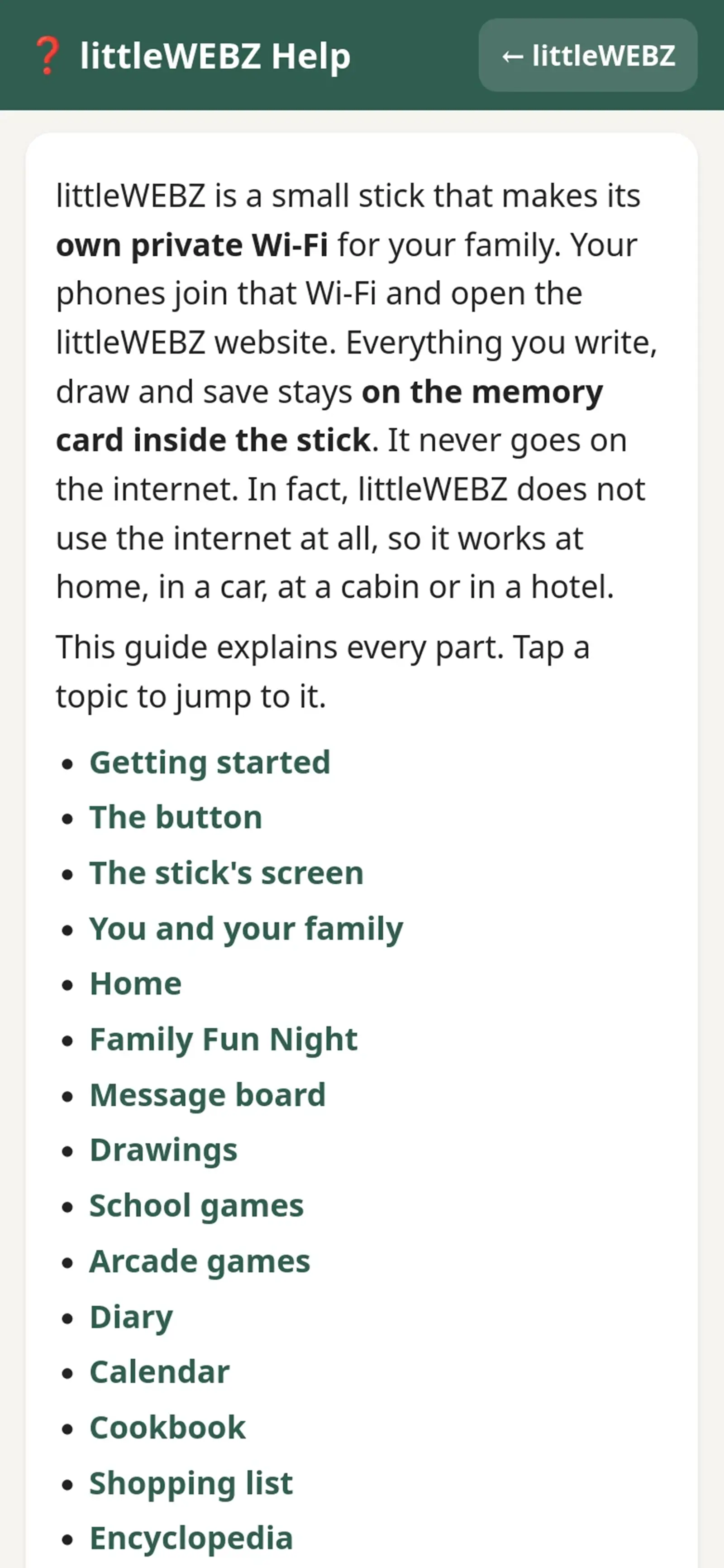
littleWEBZ Help Guide: Every Topic in One Place


Every littleWEBZ stick has this Help guide built in, in plain English. Here it is on the web too, so you can read it before you buy or when your phone is not on the littleWEBZ Wi-Fi.

The built-in littleWEBZ Help guide on a phone
  1. Getting Started the Button and the Screen: Set up littleWEBZ in a minute: plug it in, scan two codes, choose a Parent PIN. What the button and the screen mean.
  2. The Parent PIN and Your Family: How the 6-number Parent PIN works, the recovery code on the box card, and how family members, names and colors work.
  3. Family Fun Night Trivia: Live trivia for up to 4 phones: start a game, rounds, jokers, the Wildcard, the host and the scoreboard on the stick.
  4. Message Board Drawings and Diary: Post notes and photos, draw with your finger, and keep a private diary with its own PIN.
  5. School Games and Arcade Games: Letter Slash, Number Match and Shape Monster for young kids, plus Brick Blaster, Star Defenders and Poker Night with pretend chips.
  6. Calendar Cookbook and Shopping List: The family calendar, family recipes with serving sizes and cook mode, the 5,000-page recipe library and the shared shopping list.
  7. Encyclopedia Books and Saved Websites: About 290,000 Simple English Wikipedia articles and more than 4,000 Wikibooks on the stick, with no internet.
  8. Wi-Fi Backup and Settings: Change the Wi-Fi name or password with the Parent PIN and the button, download a backup and manage family members.
  9. The Signal Finder: Hold the button 3 seconds: the stick becomes a silent Wi-Fi and Bluetooth meter that helps you look for hidden gadgets.
  10. Privacy Safety and Troubleshooting: What stays private and what does not, fixes for common problems, good-to-know facts and credits.

New words? See the littleWEBZ Glossary.

littleWEBZ is $69.99. No monthly fee, no accounts and no internet needed.
Get littleWEBZ See every feature

by the littleWEBZ team

littleWEBZ Help: Privacy Safety and Troubleshooting


What stays private and what does not, fixes for common problems, good-to-know facts and credits.

The littleWEBZ stick seen from the top

Privacy and safety

  • littleWEBZ makes its own Wi-Fi with its own password. Only phones that know the password can join.
  • Nothing goes on the internet. Everything is on the memory card inside the stick.
  • In the littleWEBZ website, private diary entries need their owner's PIN.
  • Changing the Wi-Fi and resetting a diary PIN both need the Parent PIN and a press of the stick's button. So a kid cannot do them, and nobody can do them from far away.
  • A diary PIN reset erases that person's private entries. A reset never opens someone's diary.
  • But the PIN only works in the website. Anyone who holds the stick can read everything on its card with a computer, private diary entries too. So keep the stick in a place your family trusts.

If something goes wrong

ProblemTry this
My phone cannot find the littleWEBZ Wi-FiCheck the stick is plugged in and shows the eyes. Press its button and scan the left code. Stand in the same room.
The page does not openMake sure your phone is on the littleWEBZ Wi-Fi, not your home Wi-Fi. Then type 192.168.4.1. If your phone switched back to another Wi-Fi because there is "no internet", tell it to stay connected.
"littleWEBZ did not answer"The stick may be unplugged, or your phone left its Wi-Fi. Check both, then pull down on the page to reload it.
"littleWEBZ is busy, try again"Wait a few seconds and tap again. Saving can take a moment when many phones use it. If the stick's screen says "Copying files", wait until it is done.
I forgot the Wi-Fi passwordPress the button on the stick. The password is under the left code.
I forgot my diary PINSee Diary: "I forgot my PIN". A parent types the Parent PIN, then presses the stick's button. Your private entries are erased.
I forgot the Parent PINUse the recovery code on the card from the box. See The Parent PIN.
A kid chose the Parent PIN firstUse the recovery code on the box card to set a new Parent PIN.
The screen says "memory card missing"Push the card in until it clicks. If that does not help, unplug the stick for 10 seconds and plug it in again.
The screen is dark or stuckUnplug the stick for 10 seconds and plug it in again. Your things are saved on the card.
The trivia game seems stuckThe host may have paused it, or the host's phone is asleep: another team can tap Take over as host.
The stick is a Signal Finder and I want littleWEBZ backHold the button 3 seconds, or unplug it and plug it in again.

Good to know

  • littleWEBZ saves as you go. Unplugging is safe. The stick also protects files that were being saved at that moment.
  • There is no "factory reset" button. If you ever need a fresh start, the seller can reload the stick for you.
  • The backup can be downloaded, but there is no button to put a backup back on the stick yet.
  • Unplugging the stick ends the waiting time after wrong diary PINs (not after wrong Parent PINs).
  • Photos are made smaller on your phone before they are saved (1280 pixels wide). Very big files (over 6 MB) are refused.
  • The trivia game has 100 questions to start with. More question packs can be added to the memory card.
  • littleWEBZ works best with up-to-date phones and web browsers.

Credits

The encyclopedia is the Simple English Wikipedia (wikipedia.org). The books and the recipe library come from Wikibooks (wikibooks.org). Volunteers wrote them. Thank you!

You may share their text if you name where it came from. The rules for that are called "CC BY-SA 4.0".

Each trivia fact is a short quote from the encyclopedia page named under it.

The maker names in the Signal Finder come from a public list kept by the IEEE.

This is part of the littleWEBZ Help guide. The same guide is built into every stick: tap the ❓ Help tab.

All help topics · Glossary · Support · Buy littleWEBZ

by the littleWEBZ team

littleWEBZ Help: The Signal Finder


Hold the button 3 seconds: the stick becomes a silent Wi-Fi and Bluetooth meter that helps you look for hidden gadgets.

The littleWEBZ stick showing the Wi-Fi and Bluetooth meters

Signal Finder

The Signal Finder turns the stick into a silent radio meter. Use it to check a room, like a hotel room or a rental, for hidden gadgets that send Wi-Fi or Bluetooth signals, such as hidden cameras or tracking tags.

While it is a Signal Finder, the stick is not littleWEBZ: no family Wi-Fi, no website. Your family's things are safe on the card. Hold the button 3 seconds, or unplug the stick, and it is littleWEBZ again.

Start and stop

  • Plug the stick into a power bank so you can carry it around.
  • Wait for the eyes, then hold the button 3 seconds. The screen says "Signal Finder".
  • To stop, hold the button 3 seconds again, or unplug it.

Reading the meters

There are two meters: WI-FI on top and BLUETOOTH below.

  • A longer bar means a stronger signal. Green is weak, yellow is medium and red is strong.
  • The word tells you how close: FAR, MEDIUM, NEAR or VERY CLOSE. The number is the signal strength in dBm: −30 is very strong, −90 is very weak.
  • The thin white line is the highest level of the last few seconds. A gadget that is quiet for 3 seconds slowly drops, and after 30 seconds of silence it is forgotten. It helps you notice when you walked past the strongest spot.
  • Under each meter you see which gadget it follows. You see the maker, if the stick knows it, and the last 4 characters of its address, like "Espressif 3F2A". Wi-Fi gadgets also show their channel ("ch 6"). "Private" means the gadget hides its maker. "Unknown" means the maker is not on the stick's short list.
  • The bottom line takes turns: how many Wi-Fi and Bluetooth gadgets are around, then a reminder of the buttons.

Warning words

BUSYThis Wi-Fi gadget is sending a lot of data. Video cameras send a lot.
CAM MAKERIts maker also makes security cameras.
TRACKER?This Bluetooth gadget looks like a tracking tag (like an AirTag, Tile or SmartTag).

These words are clues, not proof. A TV can be busy, and a phone can look like a tracker. Use them to decide what to look at more closely.

The button in Signal Finder

What you doWhat happens
Press onceThe meters follow the next gadget, from strongest to weakest. A ">" shows you picked it. After the last one, they go back to the strongest. On the radar picture, a press goes back to the meters.
Press twice quicklyStarts a turn to find the direction (see below).
Hold 3 secondsBack to littleWEBZ.

Finding the direction: the turn

  1. Pick the gadget you want with single presses.
  2. Hold the stick flat against your chest, screen toward you.
  3. Press twice quickly. Then turn slowly to your right (clockwise), one full circle, in about 10 seconds. The ring on the screen shows how far you are. Always turn to the right: turning left mixes up the directions.
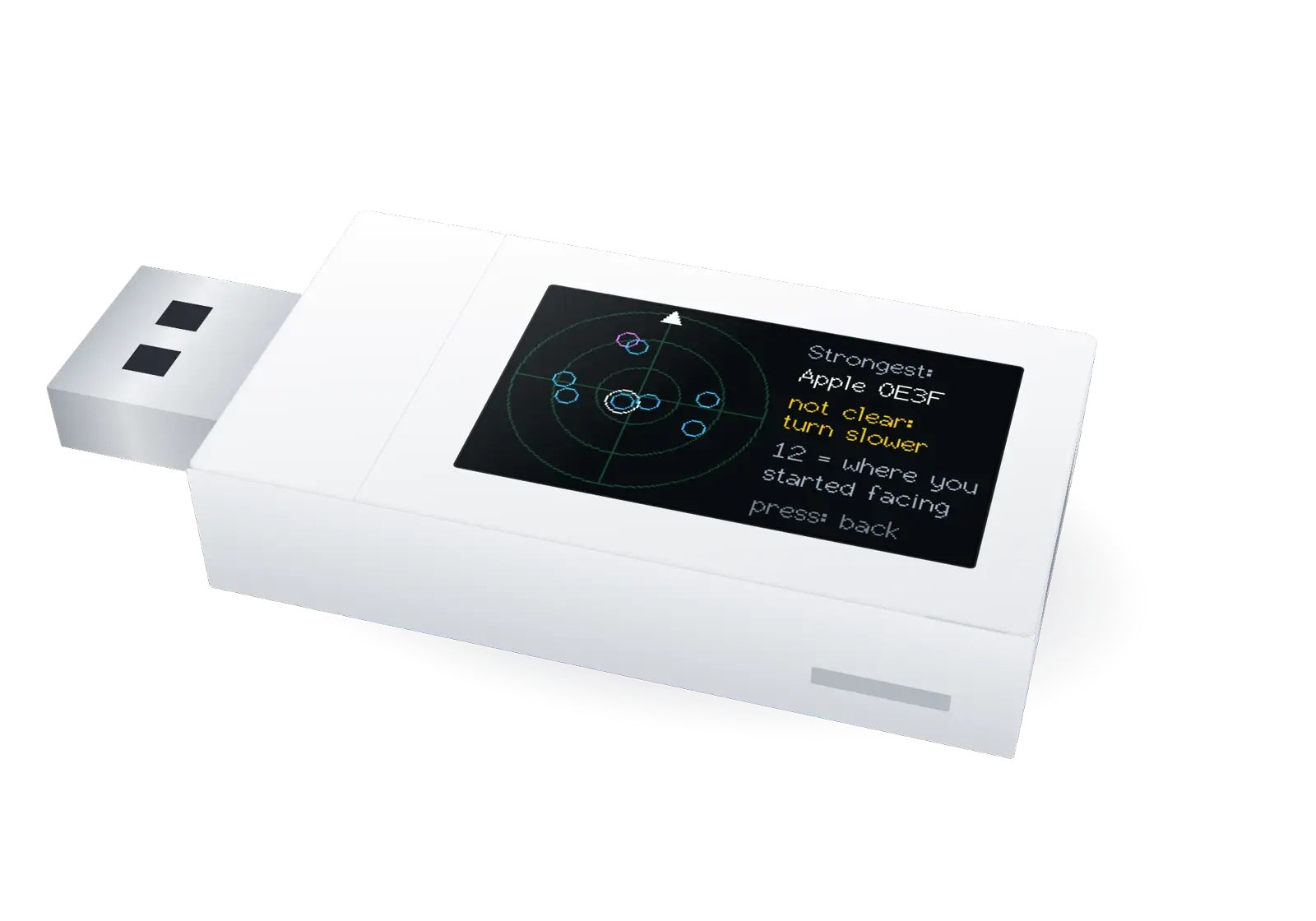
  4. The stick then shows a radar picture. The arrow at the top (12 o'clock) is the way you faced when you started. Each dot is a gadget (up to the 8 strongest): blue for Wi-Fi, pink for Bluetooth. The ringed dot is the one the meters follow. A dot closer to the middle has a stronger signal.
  5. On the right, the stick names the strongest gadget and tells you where it is, like "at 4 o'clock". That means: from where you started, turn to where the 4 is on a clock face.

This works because your body blocks part of the signal. The signal is strongest when you face the gadget.

A filled dot has a clear direction. An empty dot, or "not clear: turn slower", means the stick could not tell. Try again, turning slower and more evenly.

Hot and cold

After the turn, walk the way it showed and watch the meter. The bar grows as you get closer, like the game "hot and cold". The white line shows the highest level, so you notice when you pass the closest spot. Check that area: smoke detectors, clocks, chargers, lamps, picture frames, plants and air vents.

What it cannot do

  • It only hears 2.4 GHz Wi-Fi and Bluetooth Low Energy, the kind used by tags, watches and most small gadgets. Some newer gadgets use 5 GHz Wi-Fi, and some older ones use "classic" Bluetooth. The stick cannot hear those.
  • It follows at most 64 Wi-Fi and 64 Bluetooth gadgets at a time, the strongest ones.
  • A camera that only saves video on its own memory card, or that uses a cable, sends no signal. The stick cannot find it.
  • Gadgets that use very fast Wi-Fi (like laptops and new phones) look quieter than they are, so they may not show BUSY. Simple gadgets, like most small cameras, are measured well.
  • Walls, furniture and people change signals. Directions are rough, about one eighth of a circle.
  • The Signal Finder helps you look. It cannot promise that a room is safe. If you find something worrying, do not touch it: tell the hotel or the police.
The Signal Finder only listens. It sends nothing, does not join any network, and does not read anyone's messages. It only notes which gadgets are near and how strong their signals are. It forgets everything when you leave Signal Finder.
The Signal Finder radar picture on the stick screen
The radar picture after a slow turn: each dot is a gadget.

This is part of the littleWEBZ Help guide. The same guide is built into every stick: tap the ❓ Help tab.

All help topics · Glossary · Support · Buy littleWEBZ

by the littleWEBZ team

littleWEBZ Help: Wi-Fi Backup and Settings


Change the Wi-Fi name or password with the Parent PIN and the button, download a backup and manage family members.

The littleWEBZ message board on a phone

Wi-Fi, backup and settings

These are in the 👪 Family tab.

Family members

Add, edit or remove family members. Removing someone needs the Parent PIN. It does not delete what they posted. Renaming someone keeps all their posts, recipes and diary. If the person has a diary PIN, it is needed to rename them.

The settings also show the Wi-Fi name, how many phones are connected and how full the memory card is.

Change the Wi-Fi name or password

  1. Type a new name (up to 31 characters), a new password (8 to 63 characters), or both. Leave the password empty to keep the old one.
  2. Tap Change Wi-Fi and type the Parent PIN. The stick's screen says "PRESS: new Wi-Fi".
  3. Press the button on the stick within one minute. The stick restarts with the new Wi-Fi.
  4. The stick shows the new codes for one minute. Every phone must now join the new Wi-Fi.

Backup

Tap Download a backup of all lists and diaries to save a file on your phone. It has the text of your messages, drawings list, diaries, calendar, shopping list, family list, game scores and family recipes. It does not have the photos or the drawing pictures themselves. Your own private diary entries are included only if you opened your diary with your PIN on that phone first.

This is part of the littleWEBZ Help guide. The same guide is built into every stick: tap the ❓ Help tab.

All help topics · Glossary · Support · Buy littleWEBZ

by the littleWEBZ team

littleWEBZ Help: Encyclopedia Books and Saved Websites


About 290,000 Simple English Wikipedia articles and more than 4,000 Wikibooks on the stick, with no internet.

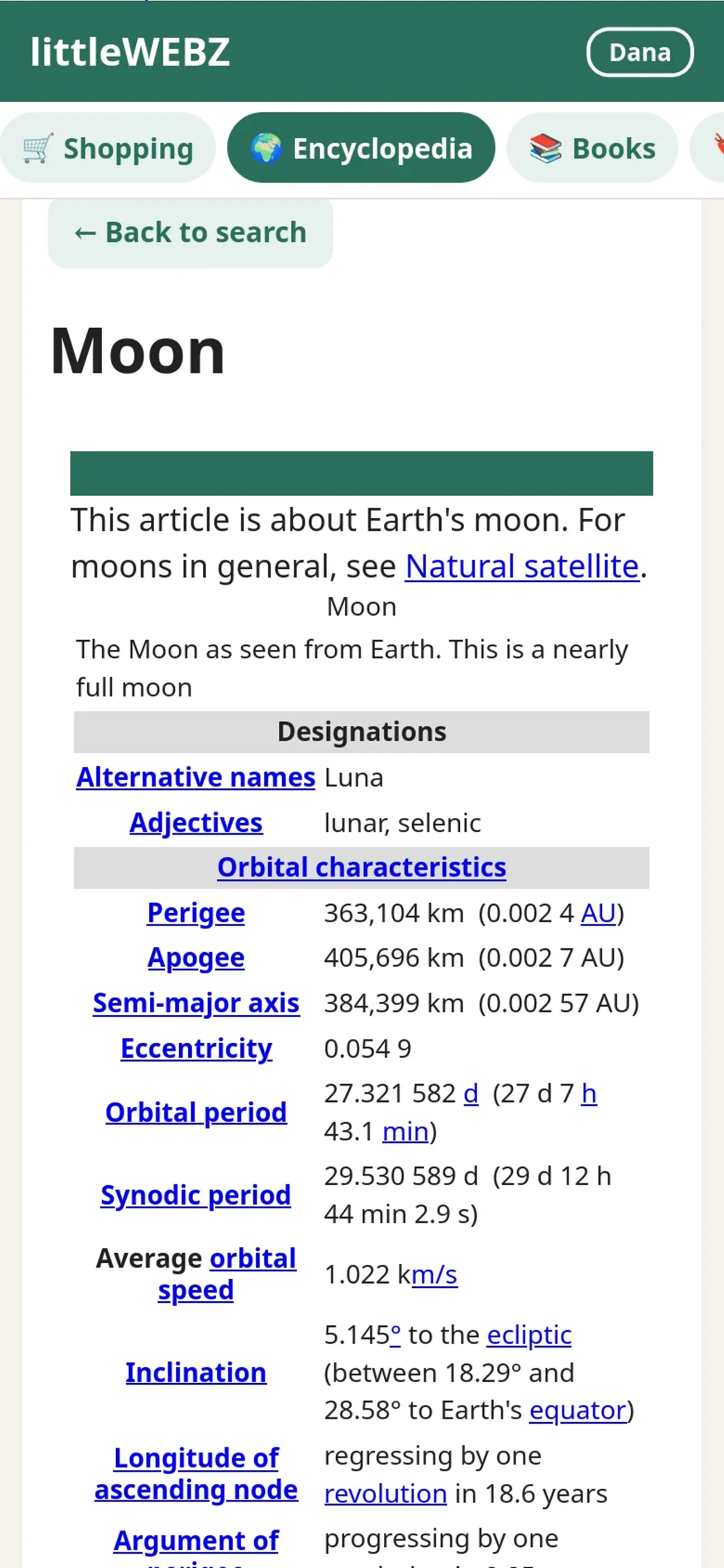
An encyclopedia article in littleWEBZ on a phone

Encyclopedia

The Simple English Wikipedia is on the stick: about 290,000 articles in easy English. Type the start of a title and tap it, or tap Random article to learn something new. Blue words in an article open other articles. The articles have no pictures.

Books

All of English Wikibooks is on the stick: more than 4,000 free books about school subjects, languages, science, computers, hobbies and more. Search the names of all the pages (type how a name starts), filter the list of books, or open Wikijunior for books made for kids. The green bar at the top of a book page takes you back to littleWEBZ.

Saved websites

Copies of websites can be put on the memory card from a computer, to read without the internet. They show up here.

Only put websites you trust on the card. A saved website runs inside littleWEBZ like littleWEBZ itself.

This is part of the littleWEBZ Help guide. The same guide is built into every stick: tap the ❓ Help tab.

All help topics · Glossary · Support · Buy littleWEBZ

by the littleWEBZ team

littleWEBZ Help: Calendar Cookbook and Shopping List


The family calendar, family recipes with serving sizes and cook mode, the 5,000-page recipe library and the shared shopping list.

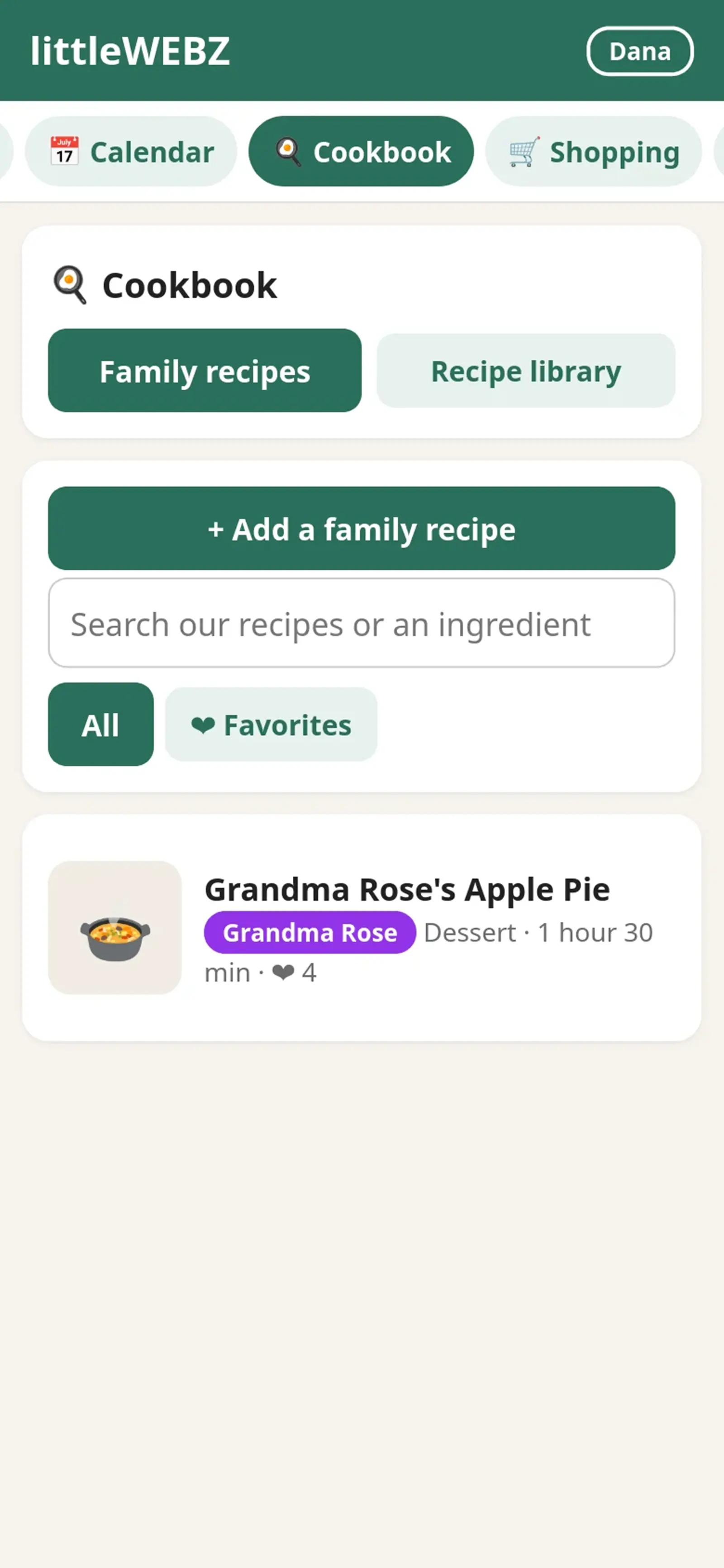
The littleWEBZ cookbook on a phone

Calendar

Tap a day to see what is on it. To add something, type what is happening, pick a time and who it is for, then tap Add. Birthdays of family members show by themselves. The list under the calendar shows what is coming up. You can delete what you added.

Cookbook

Family recipes

  • Tap + Add a family recipe. Type the name, the ingredients (one per line) and the steps (one per line). Add a photo of the dish if you like.
  • In the ingredients, a line that ends with a colon, like "For the sauce:", becomes a small heading.
  • You can also add notes and a cooking time. You can edit or delete your own recipes. Tap ❤ on a recipe to make it a favorite.
  • Search by name or ingredient. Filter by type (Breakfast, Dinner and so on) or by ❤ Favorites.
  • Open a recipe and use + and − next to "Serves" to cook for more or fewer people. The amounts change for you.
  • Tick the things you already have. Then tap Add what we don't have to Shopping. They show on the shopping list with the recipe's name.
  • 🔥 Cook mode shows one step at a time in big letters and keeps your screen on while you cook.

Recipe library

About 5,000 cookbook pages from Wikibooks are on the stick: recipes, ingredients and cooking tips. Type the start of a dish's name, or tap 🎲 Surprise me. On a recipe page, tap the yellow ⭐ Save recipe button at the top to copy it into your family recipes. Then you can change it to make it your own.

Shopping list

Type something and tap Add. When you have it, tap it to tick it off. Ticked items move to Got it (tap again to un-tick). Tap Clear ticked to remove all ticked items. Everyone sees the same list, so whoever is at the store knows what to buy.

This is part of the littleWEBZ Help guide. The same guide is built into every stick: tap the ❓ Help tab.

All help topics · Glossary · Support · Buy littleWEBZ

by the littleWEBZ team

littleWEBZ Help: School Games and Arcade Games


Letter Slash, Number Match and Shape Monster for young kids, plus Brick Blaster, Star Defenders and Poker Night with pretend chips.

The littleWEBZ School games page on a phone

School games

Learning games for young kids. Each one has levels, and each level gives 1 to 3 stars. The School page shows everyone's stars.

  • 🔤 Letter Slash: letters fall from the top. Swipe through the right one. The levels go through ABC order, mixed letters, big and small letters, and first sounds (🍎 starts with A). Arcade mode gets faster and faster, with hearts.
  • 🐚 Number Match: a memory card game. Match a number with the same number of things, and later solve little sums.
  • 🎨 Shape Monster: feed Munch the monster the right shape and color, sort shapes and mix paints.
  • Every game has Easy and Hard on its start screen.

The phone can say the letters and words out loud. The sound button turns sound on or off.

Arcade games

  • 🧱 Brick Blaster: bounce the ball to smash every brick. Catch power-ups: wide paddle, lasers, fireball, extra balls, slow ball, catch and extra life. 12 stages.
  • 🚀 Star Defenders: fly your ship and stop the waves of aliens. Every 5th wave has a big boss.
  • 🃏 Poker Night: Texas Hold'em against 3 computer players. Everyone starts with 1,000 pretend chips. There is never any real money. The 💡 helper shows your hand and your chance to win. The ? button shows which hands win.

The best scores of each person show on the Arcade page.

This is part of the littleWEBZ Help guide. The same guide is built into every stick: tap the ❓ Help tab.

All help topics · Glossary · Support · Buy littleWEBZ

by the littleWEBZ team

littleWEBZ Help: Message Board Drawings and Diary


Post notes and photos, draw with your finger, and keep a private diary with its own PIN.

The littleWEBZ diary on a phone

Message board

Write a note for the whole family and tap Post. You can add a photo from your phone. Tap the heart ♡ to like a message. You can delete your own messages. The board shows the newest 500 messages. Older ones are kept on the card but not shown.

Drawings

Draw with your finger. Pick a color and a brush size. White is the eraser. Undo takes back the last line, and Clear starts over. Tap Put it on the wall to share your picture with the family. Everyone can add hearts. The wall shows the newest 500 drawings.

Diary

  • The first time, choose a 4-digit PIN. You need it to open and write in your diary. Nobody else can read your private entries.
  • When you write an entry, you can choose to share it. Shared entries show under Shared by the family for everyone.
  • You can add a photo, and you can edit or delete your own entries.
  • If you type a wrong PIN 5 times, you must wait 30 seconds. Each new wait is twice as long, up to about one hour.
  • The phone remembers your PIN until you close the browser or tap Switch person.

Forgot your PIN?

  1. Tap I forgot my PIN. Choose your new PIN and type it two times.
  2. Ask a parent to type the Parent PIN.
  3. The stick's screen says "PRESS: reset PIN of" and your name. Press the button on the stick within one minute. Now your new PIN works.
A reset erases your private entries. That way nobody, not even a parent, can use a reset to read your diary. Your shared entries stay.

This is part of the littleWEBZ Help guide. The same guide is built into every stick: tap the ❓ Help tab.

All help topics · Glossary · Support · Buy littleWEBZ

by the littleWEBZ team

littleWEBZ Help: Family Fun Night Trivia


Live trivia for up to 4 phones: start a game, rounds, jokers, the Wildcard, the host and the scoreboard on the stick.

Family Fun Night trivia on a phone

Family Fun Night

A live trivia game for up to 4 phones (4 teams), just like trivia night at a restaurant. Every team answers on its own phone. Each answer comes with a short fact from the encyclopedia on the stick.

Start a game

  1. One person opens 🎉 Fun Night and taps Start a game. That phone is the host.
  2. Pick a team name and a team color. Choose the rounds, how many questions per round (3, 5 or 10) and the time for each question. Pick 45 seconds for young players.
  3. Tap Open the game for the other phones.
  4. On the other phones: open littleWEBZ, tap 🎉 Fun Night, then Join the game.
  5. When all teams are in, the host taps Start the game.

Playing

  • There are up to 5 rounds: 🐾 Animals, 🚀 Space & Science, 🌍 World & Places, 🏛️ History & Inventions and the 🃏 Wildcard. The host can leave some out. Each Wildcard question mixes two topics and counts double.
  • Each round starts with a title screen. It starts by itself after 30 seconds.
  • Read the question and tap A, B, C or D. Your answer is locked in: you cannot change it.
  • When every team has answered (or time runs out), all phones show the right answer and a short fact from the encyclopedia for 12 seconds.
  • A right answer is worth 10 points (20 in the Wildcard round).
  • Joker: each team gets one joker per game. Play it on a round's title screen, before the round starts. It doubles your points for that round. A joker in the Wildcard round makes each answer worth 40!
  • The scores show between rounds. At the end, the winner gets confetti. If two teams have the same points, the team that answered right faster wins.

The host

  • The host can start each round sooner, show the answer early and go to the next question. The game also moves on by itself, so nobody has to wait.
  • The ☰ menu lets the host pause and resume, or end the game. To remove a team, tap the ✕ next to its name before the game starts.
  • If the host's phone is asleep for 15 seconds, any other team can tap Take over as host.
  • At the end, the host can tap Play again. The next game uses new questions first.
A phone that falls asleep does not hold up the others. Wake it up and it is back in the game.

Anyone can leave with ☰ › Leave the game. After the game has started, the team's score stays on the board, but a team that left is placed last. A team that comes back with the same name gets its points back.

When the game is full (4 teams), other phones can still watch the scores. The 🔊 button turns the sounds on or off. The screen stays on during a game.

The game lives in the stick's memory. Unplugging the stick, or switching it to the Signal Finder, ends the game for everyone. A game nobody touches for 30 minutes ends by itself.

This is part of the littleWEBZ Help guide. The same guide is built into every stick: tap the ❓ Help tab.

All help topics · Glossary · Support · Buy littleWEBZ

by the littleWEBZ team

littleWEBZ Help: The Parent PIN and Your Family


How the 6-number Parent PIN works, the recovery code on the box card, and how family members, names and colors work.

The littleWEBZ Home screen on a phone

The Parent PIN

The first person to set up littleWEBZ chooses the Parent PIN. So a parent should set it up first.

Kids can use everything else. Only the Parent PIN can:

  • change the Wi-Fi name or password,
  • reset someone's diary PIN,
  • remove a family member, or change someone else's name or details.

For the Wi-Fi and a diary PIN reset, someone must also press the button on the stick. So the PIN alone is not enough, and the stick alone is not enough.

Change the Parent PIN

Go to 👪 Family, then Change the Parent PIN. Type the Parent PIN you have now, then the new one two times.

Forgot the Parent PIN?

Each stick has its own recovery code. It is printed on the card that came in the box. Go to 👪 Family, then Forgot the Parent PIN? Type the recovery code, then a new Parent PIN two times.

Keep the box card somewhere safe, away from the kids. Anyone with the recovery code can set a new Parent PIN.

If you type a wrong Parent PIN or recovery code 5 times, you must wait 30 seconds. Each new wait is twice as long, up to about one hour. Unplugging the stick does not end the wait.

You and your family

  • Each person picks a name and a color. Your color shows next to everything you post.
  • Each phone remembers who uses it. To change, go to 👪 Family › Switch person.
  • Only the person who posted a message, drawing, diary entry, calendar event or recipe can change or delete it. Everyone can add hearts.
  • The shopping list belongs to everyone: anyone can change it. Anyone can add a family member. You can change your own name and details. Only a parent can remove someone or change someone else.
  • Add a birthday, and littleWEBZ shows it on the calendar and on Home when it is close.

Home

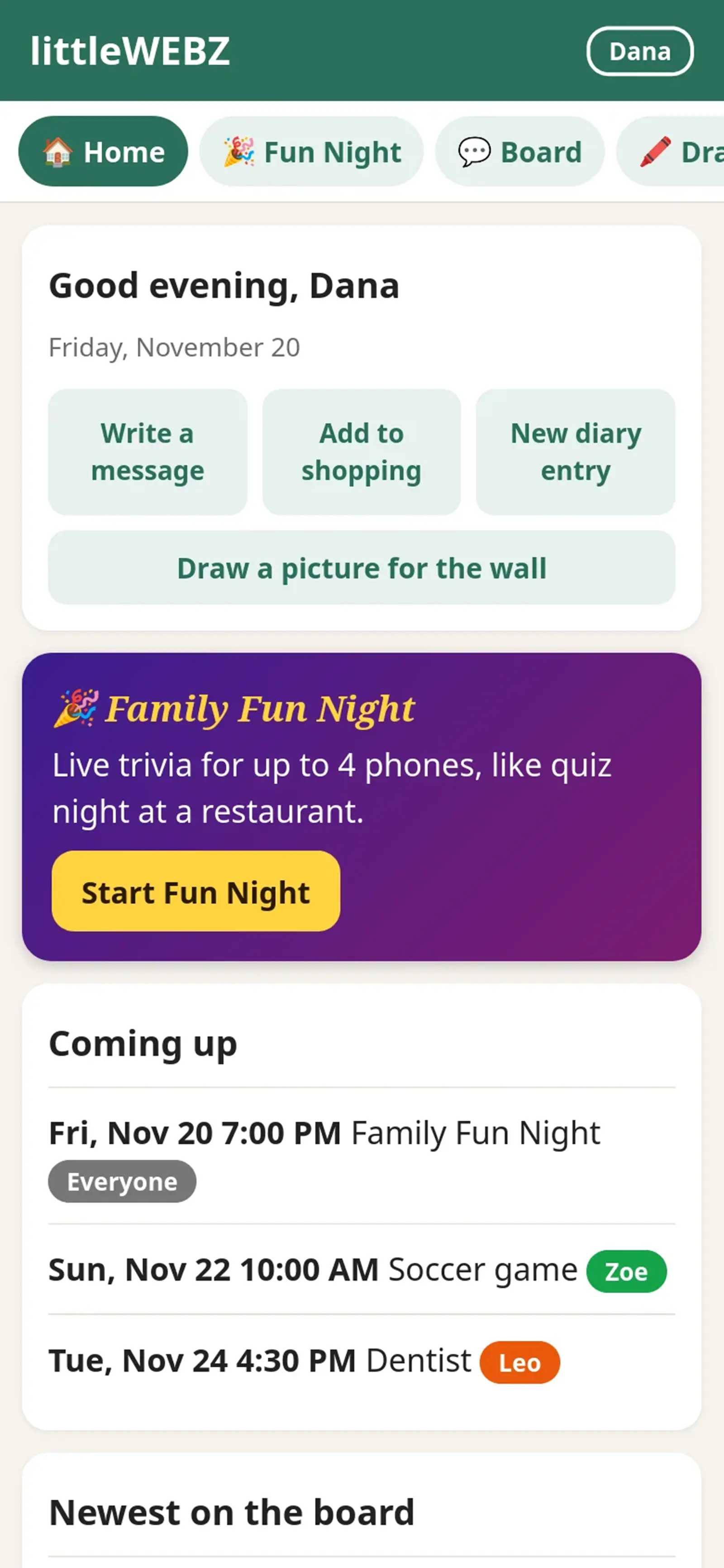
Home greets you and shows what is new: birthdays coming up, the next calendar events, the newest messages and how many things are on the shopping list. The buttons at the top are shortcuts. The purple Family Fun Night banner lets you start a trivia game, or join one that is going on.

The tabs at the top lead to every part of littleWEBZ. Slide them sideways to see them all.

This is part of the littleWEBZ Help guide. The same guide is built into every stick: tap the ❓ Help tab.

All help topics · Glossary · Support · Buy littleWEBZ

by the littleWEBZ team

littleWEBZ Help: Getting Started the Button and the Screen


Set up littleWEBZ in a minute: plug it in, scan two codes, choose a Parent PIN. What the button and the screen mean.

The littleWEBZ stick with its small color screen

littleWEBZ is a small stick that makes its own private Wi-Fi for your family. Your phones join that Wi-Fi and open the littleWEBZ website. Everything you write, draw and save stays on the memory card inside the stick. It never goes on the internet. In fact, littleWEBZ does not use the internet at all, so it works at home, in a car, at a cabin or in a hotel.

Getting started

  1. Plug in the stick. Any USB charger, power bank or computer USB port works. The screen says "littleWEBZ", then shows two square codes (QR codes) for one minute.
  2. Join its Wi-Fi. Open your phone's camera and point it at the left code ("1 join Wi-Fi"). Tap the message that pops up. Your phone joins the littleWEBZ Wi-Fi.
    You can also join by hand: the Wi-Fi name and password are written under the left code. Each stick has its own password.
  3. Open littleWEBZ. Point the camera at the right code ("2 open hub"), or type 192.168.4.1 in your web browser. (http://little.webz also works if you type the "http://" part.)
  4. A parent chooses the Parent PIN. The very first time, littleWEBZ asks for a Parent PIN: 6 numbers that only the parents know. See The Parent PIN.
  5. Add yourself. Type your name and pick a color. Each phone remembers who uses it.
Your phone may say "No internet" on this Wi-Fi. That is normal: littleWEBZ works without the internet. If your phone asks, choose to stay connected.
Missed the codes? Press the button on the stick once. The codes come back for one minute.

Up to 10 phones can be on the littleWEBZ Wi-Fi at the same time.

The button

The stick has one button on its side.

What you doWhat happens
Press onceShows the Wi-Fi codes for one minute (press again to hide them). If the screen says "PRESS:", this press says yes to that request instead, for example a new Wi-Fi name or a PIN reset (a parent asks for those with the Parent PIN).
Hold 3 secondsTurns the stick into the Signal Finder. Hold 3 seconds again to come back.
Do not hold the button while you plug the stick in. That starts a special mode for loading new software. If it happens, unplug the stick and plug it in again without touching the button.

The stick's screen

  • Two eyes: littleWEBZ is on and ready. Below them you see the Wi-Fi name, and how many phones are connected (or the address 192.168.4.1 when none are).
  • Two square codes: how to join (see Getting started).
  • "PRESS: ..." in yellow: someone asked for something that needs a yes from the stick. Press the button within one minute to say yes. If you do nothing, nothing changes.
  • "FUN NIGHT": a trivia game is on. The screen shows JOIN NOW while teams join, then the round, the seconds left, a green dot for each team that has answered, the right answer letter, the scores, PAUSED when the host pauses, and the winner at the end.
  • "Copying files": new content is being put on the card from a computer. Phones see "littleWEBZ is busy" until it is done.
  • "memory card missing": the card is loose or out. Push it in until it clicks. littleWEBZ finds it again by itself.

This is part of the littleWEBZ Help guide. The same guide is built into every stick: tap the ❓ Help tab.

All help topics · Glossary · Support · Buy littleWEBZ

by the littleWEBZ team

Counter-Surveillance for Travelers: Check a Room for Hidden Cameras and Trackers


You can check a hotel room or a rental for hidden gadgets in about ten minutes. Look with your eyes first, then use a signal meter like the littleWEBZ Signal Finder to hear gadgets that send Wi-Fi or Bluetooth.

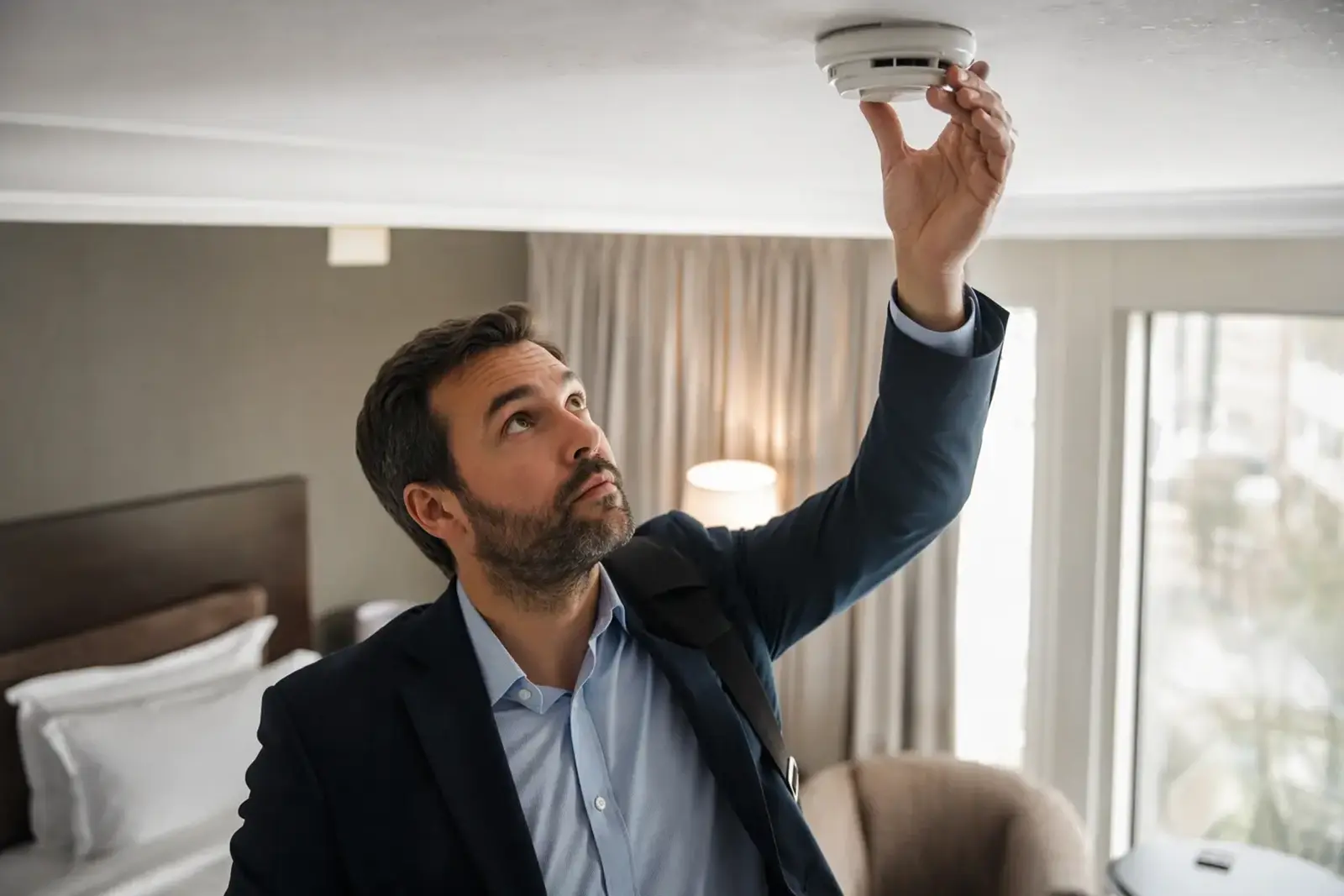
A traveler in a hotel room looks closely at a smoke detector on the ceiling

Why people check their rooms

Small cameras and tracking tags are cheap today. Most rooms are fine. But checking is quick, and it gives you peace of mind. This kind of checking is called counter-surveillance: making sure nobody is secretly watching or tracking you.

Step 1: look first

Many hidden cameras sit inside normal things. Look closely at:

  • smoke detectors and clocks
  • USB chargers and power strips
  • lamps, picture frames and plants
  • air vents and shelves that face the bed or the shower

Look for a tiny hole, a small lens that shines, or a light that blinks.

Step 2: listen for signals

Many cheap cameras send their video over Wi-Fi. Tracking tags send Bluetooth signals. You cannot see these signals, but a meter can hear them.

littleWEBZ has a mode called the Signal Finder. Hold its button for 3 seconds and the stick becomes a silent meter with two bars: WI-FI and BLUETOOTH. Plug it into a power bank and carry it around the room. The bar grows as you get closer to a gadget, like the game "hot and cold".

Step 3: read the clues

ClueWhat it means
BUSYThis Wi-Fi gadget is sending a lot of data. Video cameras send a lot.
CAM MAKERIts maker also makes security cameras.
TRACKER?This Bluetooth gadget looks like a tracking tag, such as an AirTag, Tile or SmartTag.

These are clues, not proof. A TV can be busy, and a phone can look like a tracker. Use them to decide where to look more closely.

The Signal Finder radar picture on the littleWEBZ screen
After a slow turn, the radar shows the rough direction of each gadget.

Step 4: find the direction

Hold the stick flat on your chest, press the button twice, and turn slowly to your right in a full circle. Your body blocks part of the signal, so the signal is strongest when you face the gadget. The stick then shows a radar picture and says where the strongest gadget is, like "at 4 o'clock". The direction is rough, about one eighth of a circle. Walk that way and watch the meter.

What a signal meter cannot do

  • It cannot hear 5 GHz Wi-Fi or classic Bluetooth.
  • It cannot find a camera that only records to its own memory card, or one that uses a cable. Those send no signal.
  • Fast modern devices, like laptops, may not show BUSY.
  • It cannot promise that a room is safe. It helps you look.
If you find something worrying, do not touch it. Take a photo, leave the room and tell the hotel or the police.

Good habits on the road

  • Check the room before you unpack.
  • Many phones can warn you about tracking tags that travel with you. Check your phone's settings.
  • Use the Signal Finder to look, and use it fairly: it is for checking your own room, never for spying on other people.

The Signal Finder only listens. It sends nothing, joins no network and reads no messages. When you hold the button again, the stick is your private family hub once more. Read the full Signal Finder guide.

Questions and answers

Can littleWEBZ find every hidden camera?

No. It hears gadgets that send 2.4 GHz Wi-Fi or Bluetooth Low Energy. Cameras that use 5 GHz, a cable, or only a memory card send nothing it can hear. It helps you look; it cannot promise a room is safe.

Does the Signal Finder send any signals?

No. It only listens to signal strength and gadget addresses. It joins no network and reads no messages.

What should I do if I find a hidden camera?

Do not touch it. Take a photo, leave the room and tell the hotel or the police.

littleWEBZ is a family hub and a Signal Finder in one stick, for $69.99.

Get littleWEBZ See every feature

littleWEBZ Help guide · Glossary · More from the Family HUB