littleWEBZ Help: Getting Started the Button and the Screen
Set up littleWEBZ in a minute: plug it in, scan two codes, choose a Parent PIN. What the button and the screen mean.
littleWEBZ is a small stick that makes its own private Wi-Fi for your family. Your phones join that Wi-Fi and open the littleWEBZ website. Everything you write, draw and save stays on the memory card inside the stick. It never goes on the internet. In fact, littleWEBZ does not use the internet at all, so it works at home, in a car, at a cabin or in a hotel.
Getting started
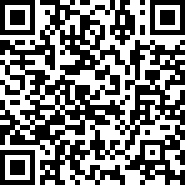
- Plug in the stick. Any USB charger, power bank or computer USB port works. The screen says "littleWEBZ", then shows two square codes (QR codes) for one minute.
- Join its Wi-Fi. Open your phone's camera and point it at the left code ("1 join Wi-Fi"). Tap the message that pops up. Your phone joins the littleWEBZ Wi-Fi.
You can also join by hand: the Wi-Fi name and password are written under the left code. Each stick has its own password. - Open littleWEBZ. Point the camera at the right code ("2 open hub"), or type 192.168.4.1 in your web browser. (http://little.webz also works if you type the "http://" part.)
- A parent chooses the Parent PIN. The very first time, littleWEBZ asks for a Parent PIN: 6 numbers that only the parents know. See The Parent PIN.
- Add yourself. Type your name and pick a color. Each phone remembers who uses it.
Your phone may say "No internet" on this Wi-Fi. That is normal: littleWEBZ works without the internet. If your phone asks, choose to stay connected.
Missed the codes? Press the button on the stick once. The codes come back for one minute.
Up to 10 phones can be on the littleWEBZ Wi-Fi at the same time.
The button
The stick has one button on its side.
| What you do | What happens |
|---|---|
| Press once | Shows the Wi-Fi codes for one minute (press again to hide them). If the screen says "PRESS:", this press says yes to that request instead, for example a new Wi-Fi name or a PIN reset (a parent asks for those with the Parent PIN). |
| Hold 3 seconds | Turns the stick into the Signal Finder. Hold 3 seconds again to come back. |
Do not hold the button while you plug the stick in. That starts a special mode for loading new software. If it happens, unplug the stick and plug it in again without touching the button.
The stick's screen
- Two eyes: littleWEBZ is on and ready. Below them you see the Wi-Fi name, and how many phones are connected (or the address 192.168.4.1 when none are).
- Two square codes: how to join (see Getting started).
- "PRESS: ..." in yellow: someone asked for something that needs a yes from the stick. Press the button within one minute to say yes. If you do nothing, nothing changes.
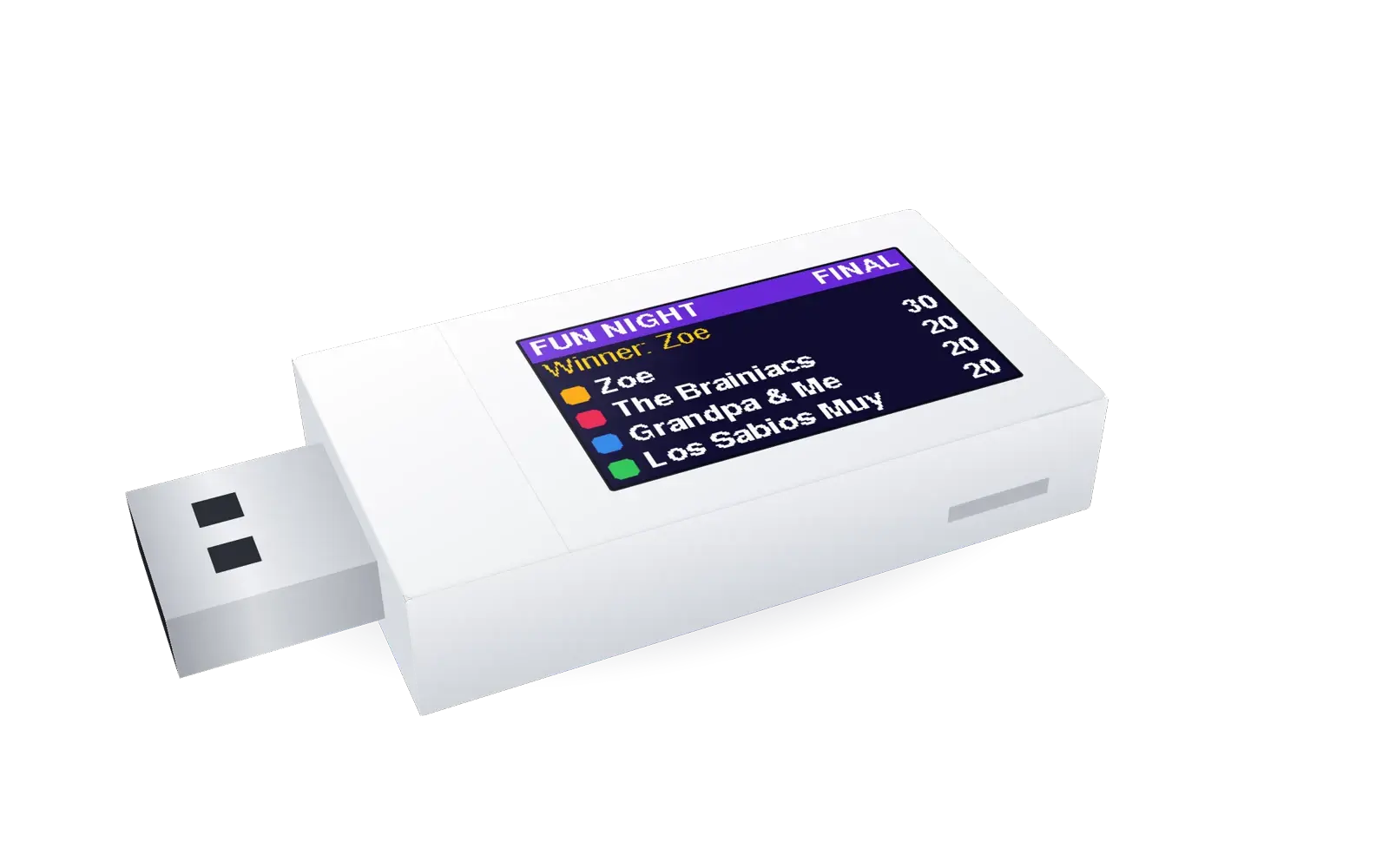
- "FUN NIGHT": a trivia game is on. The screen shows JOIN NOW while teams join, then the round, the seconds left, a green dot for each team that has answered, the right answer letter, the scores, PAUSED when the host pauses, and the winner at the end.
- "Copying files": new content is being put on the card from a computer. Phones see "littleWEBZ is busy" until it is done.
- "memory card missing": the card is loose or out. Push it in until it clicks. littleWEBZ finds it again by itself.
This is part of the littleWEBZ Help guide. The same guide is built into every stick: tap the ❓ Help tab.