
littleWEBZ Help: The Parent PIN and Your Family
How the 6-number Parent PIN works, the recovery code on the box card, and how family members, names and colors work.
The Parent PIN
The first person to set up littleWEBZ chooses the Parent PIN. So a parent should set it up first.
Kids can use everything else. Only the Parent PIN can:
- change the Wi-Fi name or password,
- reset someone's diary PIN,
- remove a family member, or change someone else's name or details.
For the Wi-Fi and a diary PIN reset, someone must also press the button on the stick. So the PIN alone is not enough, and the stick alone is not enough.
Change the Parent PIN
Go to 👪 Family, then Change the Parent PIN. Type the Parent PIN you have now, then the new one two times.
Forgot the Parent PIN?
Each stick has its own recovery code. It is printed on the card that came in the box. Go to 👪 Family, then Forgot the Parent PIN? Type the recovery code, then a new Parent PIN two times.
If you type a wrong Parent PIN or recovery code 5 times, you must wait 30 seconds. Each new wait is twice as long, up to about one hour. Unplugging the stick does not end the wait.
You and your family
- Each person picks a name and a color. Your color shows next to everything you post.
- Each phone remembers who uses it. To change, go to 👪 Family › Switch person.
- Only the person who posted a message, drawing, diary entry, calendar event or recipe can change or delete it. Everyone can add hearts.
- The shopping list belongs to everyone: anyone can change it. Anyone can add a family member. You can change your own name and details. Only a parent can remove someone or change someone else.
- Add a birthday, and littleWEBZ shows it on the calendar and on Home when it is close.
Home
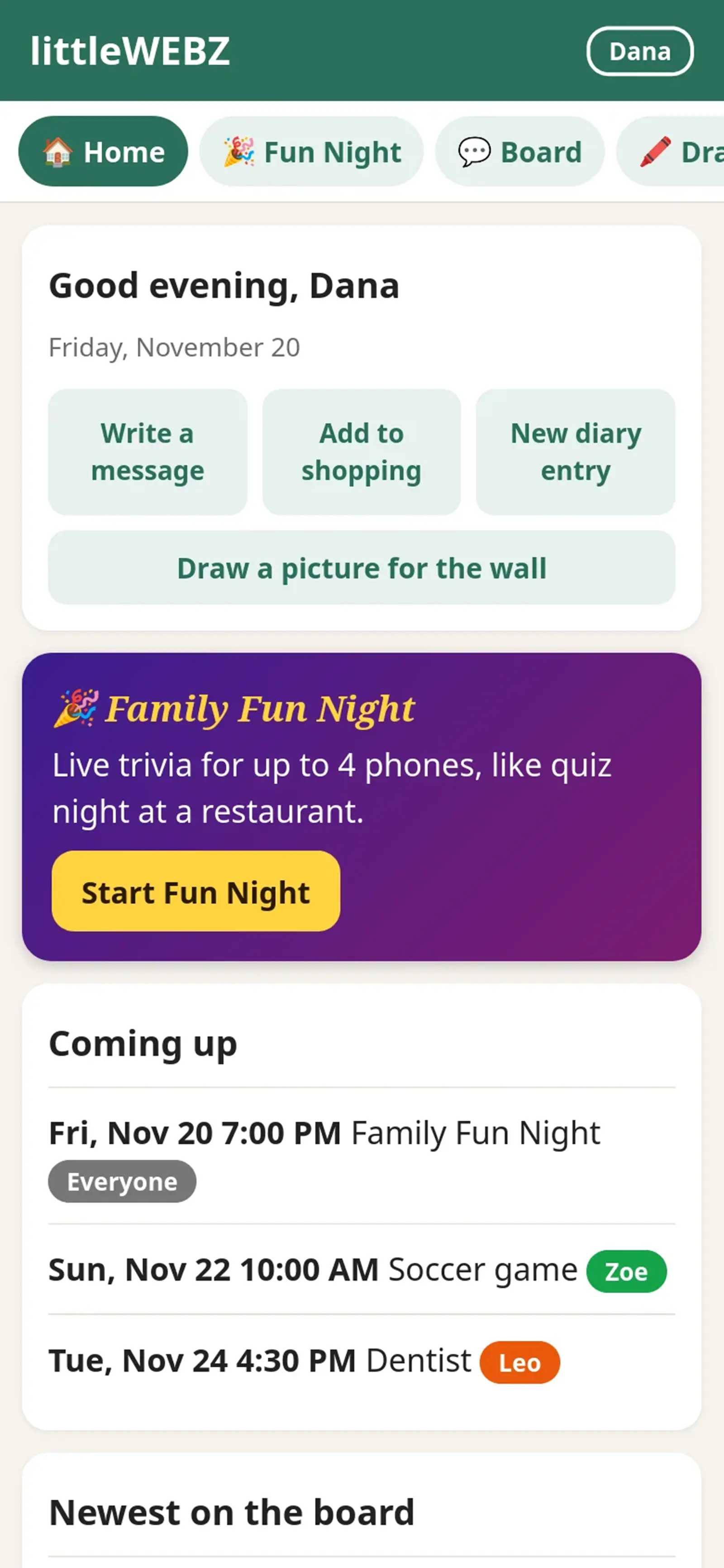
Home greets you and shows what is new: birthdays coming up, the next calendar events, the newest messages and how many things are on the shopping list. The buttons at the top are shortcuts. The purple Family Fun Night banner lets you start a trivia game, or join one that is going on.
The tabs at the top lead to every part of littleWEBZ. Slide them sideways to see them all.
This is part of the littleWEBZ Help guide. The same guide is built into every stick: tap the ❓ Help tab.