
littleWEBZ Help: Calendar Cookbook and Shopping List
The family calendar, family recipes with serving sizes and cook mode, the 5,000-page recipe library and the shared shopping list.
Calendar
Tap a day to see what is on it. To add something, type what is happening, pick a time and who it is for, then tap Add. Birthdays of family members show by themselves. The list under the calendar shows what is coming up. You can delete what you added.
Cookbook
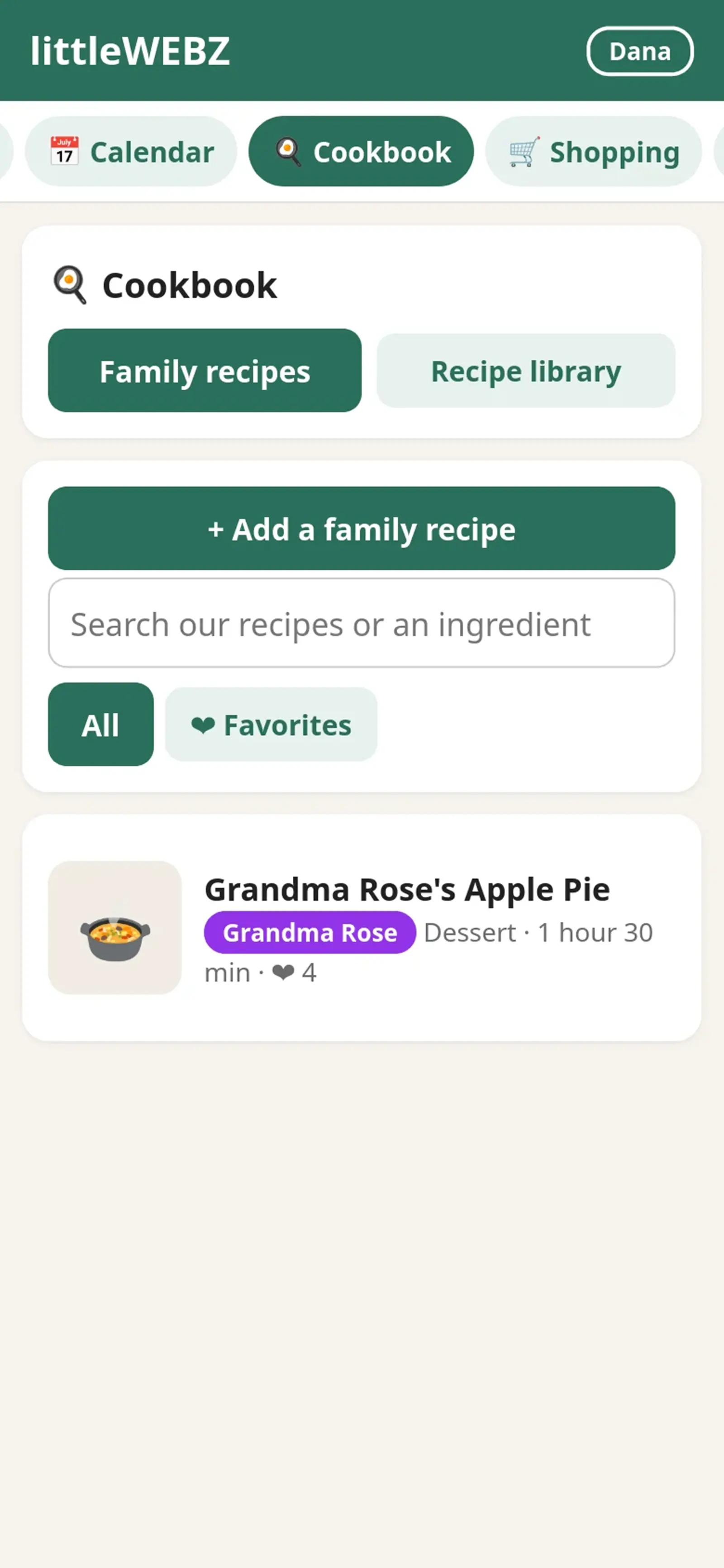
Family recipes
- Tap + Add a family recipe. Type the name, the ingredients (one per line) and the steps (one per line). Add a photo of the dish if you like.
- In the ingredients, a line that ends with a colon, like "For the sauce:", becomes a small heading.
- You can also add notes and a cooking time. You can edit or delete your own recipes. Tap ❤ on a recipe to make it a favorite.
- Search by name or ingredient. Filter by type (Breakfast, Dinner and so on) or by ❤ Favorites.
- Open a recipe and use + and − next to "Serves" to cook for more or fewer people. The amounts change for you.
- Tick the things you already have. Then tap Add what we don't have to Shopping. They show on the shopping list with the recipe's name.
- 🔥 Cook mode shows one step at a time in big letters and keeps your screen on while you cook.
Recipe library
About 5,000 cookbook pages from Wikibooks are on the stick: recipes, ingredients and cooking tips. Type the start of a dish's name, or tap 🎲 Surprise me. On a recipe page, tap the yellow ⭐ Save recipe button at the top to copy it into your family recipes. Then you can change it to make it your own.
Shopping list
Type something and tap Add. When you have it, tap it to tick it off. Ticked items move to Got it (tap again to un-tick). Tap Clear ticked to remove all ticked items. Everyone sees the same list, so whoever is at the store knows what to buy.
This is part of the littleWEBZ Help guide. The same guide is built into every stick: tap the ❓ Help tab.